Sponsored

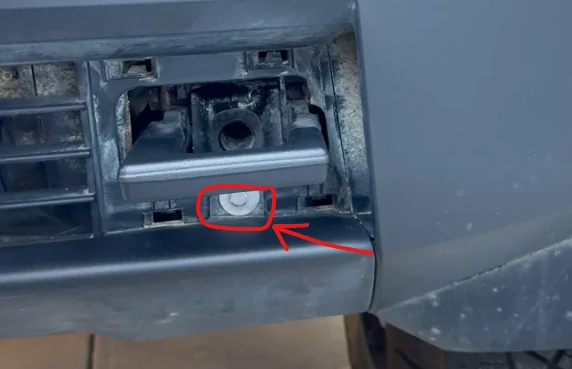
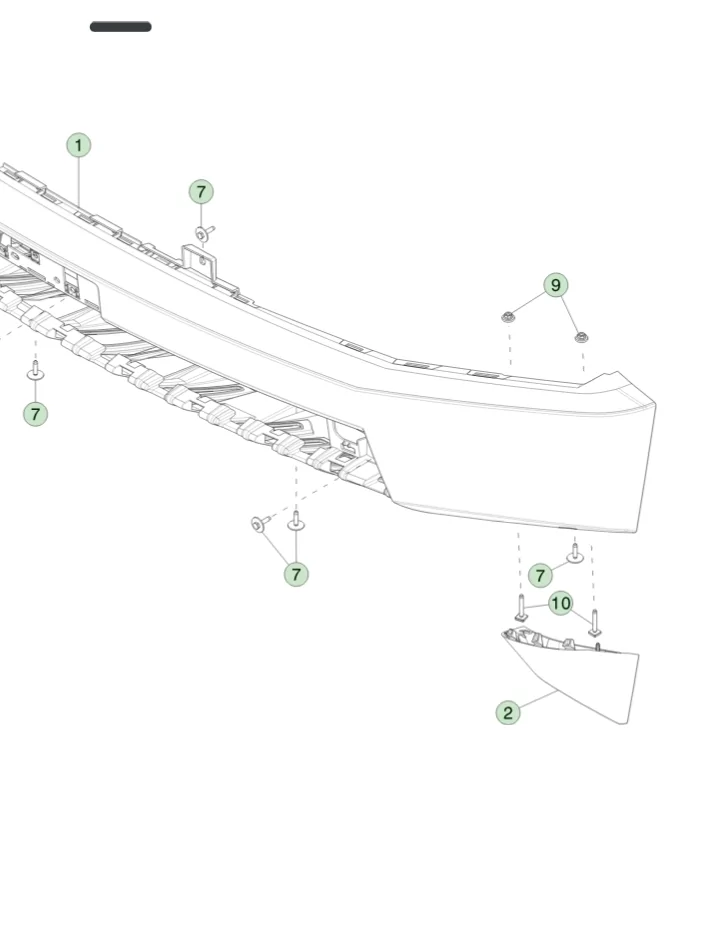
Any one know where I can get this bolt?

namhoang22

Member
Joined
Jun 10, 2025
Threads
1
Messages
5
Reaction score
1
Location
TX
Vehicles
Cybertruck
Occupation
engineer
Country flag
Hello All,
I broke the bolt when I install the bull bar to my cyber truck. Please see the image below. Does anyone know where I can get buy this bolt? thanks.

Regards,

Tesla Cybertruck Any one know where I can get this bolt? 1755469771902-ht
Sponsored


mongo

Well-known member
Joined
May 27, 2024
Threads
5
Messages
4,527
Reaction score
5,510
Location
SE Michigan
Vehicles
Cyberbeast
Country flag
OP
OP

namhoang22

Member
Joined
Jun 10, 2025
Threads
1
Messages
5
Reaction score
1
Location
TX
Vehicles
Cybertruck
Occupation
engineer
Country flag
Thanks you so much
 

CT_AZ_4x4

Well-known member
First Name
Jay
Joined
May 22, 2024
Threads
46
Messages
840
Reaction score
1,406
Location
Scottsdale, AZ
Vehicles
AWD CT
Occupation
Self employed
Country flag

MyFirstElectricTesla

Well-known member
Joined
Mar 21, 2024
Threads
66
Messages
533
Reaction score
420
Location
SoCal
Vehicles
Benz
Country flag
I couldn’t find a toggle in the settings of my iPhone 16 Pro that has the latest iOS to turn off UWB. So I asked ChatGPT and discovered that there isn’t one, but there is a way to turn it off, but it also turns off a lot of other things along the way.
here’s the response and additional information that it offered, and I accepted (a long one)

If you’re using an iPhone 16 Pro running the latest iOS, here’s how to turn off Ultra Wideband (UWB) — including the U‑chip functionality.


Turning Off UWB (U-chip) on iPhone

1. Open the Settings app.

2. Tap Privacy.

3. Tap Location Services.

4. Scroll down and tap System Services.

5. Find and toggle off Networking & Wireless.

• A confirmation prompt will appear — tap Turn Off to confirm.

• This disables the UWB chip (U1 or U2) and other location-enhanced wireless features.

This method has been consistent across iOS versions since iOS 13.3.1, and remains relevant for the latest iOS (including iOS 18 or later) on modern iPhones like the iPhone 16 Pro.

Why This Works (and What It Affects)

• Disabling Networking & Wireless not only turns off UWB but may also impact Bluetooth and Wi‑Fi performance, especially location‑driven enhancements.

• Since the iPhone 16 family includes UWB support with Apple’s U2 chip (preceded by U1 on iPhone 11–15 models), this setting applies to your device.

Quick Summary

StepAction
1Settings > Privacy > Location Services
2Tap System Services
3Find Networking & Wireless and turn it off
4Confirm to disable UWB (U-chip) functionality


So there’s no direct toggle for Ultra Wideband Bluetooth?


Correct — there’s no dedicated toggle just for Ultra Wideband (UWB) on iPhone (including the 16 Pro).


Apple doesn’t expose UWB as a standalone switch in Settings. Instead, it’s bundled under the “Networking & Wireless” option in System Services (inside Location Services).


So your choices are:

• Leave it on → UWB stays active for AirDrop, Precision Finding, CarKey, Apple Watch proximity unlock, etc.

• Turn off Networking & Wireless → This disables UWB and also limits some location-related enhancements to Wi-Fi and Bluetooth.


There’s no way in iOS (as of the latest release) to turn off just UWB while keeping the other wireless enhancements untouched.

👉 Do you want me to break down exactly which features stop working when you toggle off “Networking & Wireless”? That way you can see if the trade-off is worth it.

Got it 👍 — here’s a breakdown of what happens if you turn off “Networking & Wireless” (which is the only way to disable UWB on iPhone, including your 16 Pro).

🔌 Features Affected When You Turn Off Networking & Wireless

1. Ultra Wideband (UWB)

• Disabled completely.

• Precision-based location features stop working, such as:

• Precision Finding for AirTags, AirPods Pro (2nd gen), and Find My friends.

• CarKey proximity unlock (for cars that support UWB digital keys).

• Proximity-based Apple Watch unlock (unlocking your Mac/iPhone automatically when your watch is nearby).

2. Wi-Fi Enhancements

• iPhone won’t use Wi-Fi networks in the background to improve location accuracy.

• You can still connect to Wi-Fi manually, but location-based suggestions (e.g., indoor positioning in malls/airports, or location-based Siri suggestions) become less precise.

3. Bluetooth Enhancements

• Background Bluetooth scanning used for location is limited.

• Features that rely on nearby device awareness may not work as well, such as:

• Continuity features (like instant hotspot detection).

• Some HomeKit automations that use proximity triggers.

4. System Services That Degrade

• Maps accuracy indoors (less precise in places like malls, airports, or stadiums).

• Location-based alerts (e.g., “leave your AirPods behind” alerts may be less reliable).

• Networking handoff optimizations (handoff between Wi-Fi and cellular may be slightly less seamless).

âś… What Still Works

• Normal Wi-Fi and Bluetooth connections (you can still connect to networks and devices).

• GPS and cellular location services.

• AirDrop (falls back to Bluetooth + Wi-Fi, but without UWB directional awareness).

👉 In short: Turning off “Networking & Wireless” kills UWB cleanly, but also reduces some of Apple’s location-enhanced conveniences. If your main goal is to avoid UWB broadcasts (privacy or battery concerns), this is the only official way right now.

Do you want me to also walk you through a more granular alternative (like restricting just AirDrop / Find My / CarKey individually) so you don’t lose all the Networking & Wireless perks?

Great — here’s how you can reduce or restrict UWB use more granularly, without flipping the big Networking & Wireless switch. This way, you target the features that actually use UWB instead of disabling everything.

🎯 Granular Alternatives to Disabling All UWB

1. AirDrop

• UWB is used for “point-to-send” AirDrop (when you aim your iPhone at another).

• To restrict it:

• Go to Settings → General → AirDrop.

• You can set it to Receiving Off or Contacts Only instead of Everyone.

• This won’t fully disable UWB but prevents background proximity-based AirDrop prompts.

2. Find My / Precision Finding

• Precision Finding for AirTags, AirPods, and friends relies heavily on UWB.

• To limit it:

• Go to Settings → Privacy & Security → Location Services → Find My.

• Change to Never or While Using the App.

• This prevents UWB-assisted location tracking unless you open Find My.

3. CarKey (if you use a supported car)

• UWB lets you unlock the car just by walking up.

• To turn this off:

• Go to Settings → Wallet & Apple Pay → Car Keys.

• Choose your digital car key → disable Express Mode.

• You’ll need Face ID/Touch ID to unlock instead of proximity auto-unlock.

4. Apple Watch Unlock

• Unlocking your iPhone/Mac with Apple Watch nearby may use UWB for accuracy.

• To disable:

• On iPhone → Settings → Face ID & Passcode → scroll to Unlock With Apple Watch → toggle off.

• On Mac → System Settings → Touch ID & Password → Use Apple Watch to unlock apps and Mac → toggle off.

5. System Services (Selective)

• Instead of the blanket Networking & Wireless toggle, you can disable just certain system services:

• Settings → Privacy & Security → Location Services → System Services.

• Turn off things like Location-Based Alerts, Location-Based Suggestions, etc., while leaving Networking & Wireless on.

• This keeps Wi-Fi/Bluetooth optimizations but limits UWB-triggered background location events.

âś… Summary

• Full kill switch: Turn off Networking & Wireless → disables all UWB + location-enhanced wireless.

• Granular control: Adjust AirDrop, Find My, CarKey, Apple Watch unlock, and specific system services → cuts UWB use in targeted areas, but keeps Wi-Fi and Bluetooth optimizations.

Would you like me to make a step-by-step “UWB privacy setup” checklist (a single list you can run through once) so you don’t have to jump around settings menus piecemeal?

UWB Privacy Setup Checklist (iPhone 16 Pro, Latest iOS)

🔹 Step 1: AirDrop

1. Go to Settings → General → AirDrop

2. Set to Contacts Only or Receiving Off

• This stops UWB from constantly scanning for nearby strangers’ devices.

🔹 Step 2: Find My / Precision Finding

1. Go to Settings → Privacy & Security → Location Services

2. Tap Find My → set to While Using the App (or Never if you don’t need it).

• This prevents background UWB use for AirTags, AirPods, or friends unless you open the app.

🔹 Step 3: CarKey (if used)

1. Go to Settings → Wallet & Apple Pay → Car Keys

2. Select your car key → turn Express Mode OFF

• Your car won’t auto-unlock with UWB; you’ll confirm with Face ID/Touch ID instead.

🔹 Step 4: Apple Watch Unlock

1. On iPhone: Settings → Face ID & Passcode

• Scroll to Unlock with Apple Watch → toggle off.

2. On Mac (optional): System Settings → Touch ID & Password

• Turn off Use Apple Watch to unlock apps and Mac.

• Prevents UWB from waking devices just because your watch is nearby.

🔹 Step 5: System Services Cleanup

1. Go to Settings → Privacy & Security → Location Services → System Services

2. Review and turn OFF as needed:

• Location-Based Alerts

• Location-Based Suggestions

• Significant Locations (if you want maximum privacy)

• Leave Networking & Wireless ON unless you want to completely kill UWB (and related Wi-Fi/Bluetooth optimizations).

âś… Result: UWB use is heavily minimized (AirDrop, Find My, CarKey, Apple Watch), but Wi-Fi and Bluetooth performance remain normal.

❌ Only way to fully disable UWB is still the Networking & Wireless master switch — but that’s usually overkill.

Would you like me to also make a “one-screen version” of this checklist (short bullet list, no explanations) that you could keep as a quick reference?

⚡ Quick UWB Privacy Checklist

• AirDrop → Settings → General → AirDrop → Contacts Only / Receiving Off

• Find My → Settings → Privacy & Security → Location Services → Find My → While Using / Never

• CarKey → Settings → Wallet & Apple Pay → Car Keys → Express Mode Off

• Apple Watch Unlock → Settings → Face ID & Passcode → Unlock with Apple Watch Off

• System Services → Settings → Privacy & Security → Location Services → System Services →

• Turn off: Location-Based Alerts, Suggestions, Significant Locations

• (Optional) Networking & Wireless Off = full UWB kill switch

Would you like me to turn this into a 1-page PDF “cheat sheet” so you can keep it on hand and check it off when setting up your phone?


UWB Privacy Checklist (iPhone 16 Pro, Latest iOS)

Quick-reference guide to minimize or disable Ultra Wideband (UWB) use on your iPhone 16 Pro while

keeping Wiâ– Fi and Bluetooth intact.

• AirDrop → Settings → General → AirDrop → Contacts Only / Receiving Off

• Find My → Settings → Privacy & Security → Location Services → Find My → While Using /

Never

• CarKey → Settings → Wallet & Apple Pay → Car Keys → Express Mode Off

• Apple Watch Unlock → Settings → Face ID & Passcode → Unlock with Apple Watch Off

• System Services → Settings → Privacy & Security → Location Services → System Services →

Turn off: Location-Based Alerts, Suggestions, Significant Locations

• Optional: Networking & Wireless Off = Full UWB Kill Switch

â–  Use this checklist as a one-page cheat sheet when configuring your privacy settings
???
 

The Tesla Guy

Well-known member
First Name
Daniel
Joined
Mar 15, 2024
Threads
7
Messages
439
Reaction score
400
Location
Washington
Website
youtubeteslaguy.com
Vehicles
23MS Plaid, 23MY, LR,Order-FoundationCyberTruck DM
Occupation
Retired
Country flag
Yikes.
I was in a different thread and suddenly what I typed disappeared. Somehow jumped back to this one without noticing..
Deleted it
Reposted it to the intended thread
“Tesla App phone battery drain??”
Sponsored

 
Last edited:


Top