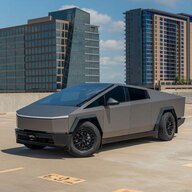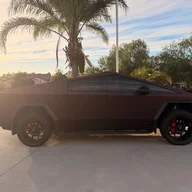

truck
Well-known member
- Joined
- Sep 23, 2023
- Threads
- 26
- Messages
- 194
- Reaction score
- 272
- Location
- Texas
- Vehicles
- Tesla Model X 2017 100D LR/S 2015 P85D/Cyberbeast

- Thread starter
- #1
MAINTAINED PAGE WITH PROPER FORMATTING: https://blog.jelq.ing/retrofit-siriusxm-satellite-in-your-cybertruck/
The following is copied and pasted from my blog post incase it's ever down (minus the intro and credits).
Needed Parts:
If you want to keep FM working, you'll have to buy a few more parts.
You don't need to use these exact parts, but if you do find other parts that work please leave them in the replies with their pricing! When ordering from the Service Center, some people have complained about Tesla restricting the parts you can order based on the model you create the ticket for. I made a ticket for my Model S and was able to order both the tuner (Model S) and the amplifier (Cybertruck) in the same ticket. If you want to order parts from the Service Center, you'll need to create a service ticket and select other as the reason. Make sure to specify that no labor is required, they'll order the part and eventually let you pick it up from the Service Center. The total for this whole operation should come out to around $468.80 and 30 minutes of your day.
Current Issues:
?
All links provided for each step are made to assist you with pictures/videos. They may or may not be specific to this install but should still be helpful as a reference point (for example, step 2 has a video showing how to install starlights, obviously you're not installing starlights but it should be helpful to see how it looks to remove the front headliner). The tuner that came with the Cybertruck will be referred to as the FM tuner and the replacement tuner will be referred to as the SXM tuner. The SXM tuner is fully capable of playing FM.
1. Setup the prerequisites
Connect all the parts together right now to make later steps easier. Connect the SMB to Fakra bridge to the SXM antenna and connect the female-to-female Fakra connector to the splitter and the amplifier. You can connect those parts to the SXM tuner now if you want, I personally waited until the tuner was working before connecting this "harness". I've linked a wiring diagram to make it a little easier to see what goes where, ignore the jumper wires. This diagram could be useful if you're confused by later steps relating to connecting the wires, feel free to refer to it later.
![Tesla Cybertruck Retrofit SiriusXM Satellite in Your Cybertruck [DIY TUTORIAL] image-3](data:image/svg+xml;charset=utf-8,%3Csvg xmlns%3D'http%3A%2F%2Fwww.w3.org%2F2000%2Fsvg' width='1600' height='1256' viewBox%3D'0 0 1600 1256'%2F%3E)
2. Remove the front headliner trim
The trim is secured by a magnet and a bunch of clips. The easiest way to remove it is to grab from the windshield side on the left as there's an indent made to stick your fingers in it, from there slide your hand closer to the door and pull. If any of the clips lose a white piece, they clip right back on. You don't need to remove the full trim if you want to make reinstallation a lot easier for yourself. The tuner should be located on the driver side.
?
https://service.tesla.com/docs/Cybertruck/ServiceManual/en-us/GUID-98CEF5F5-26A4-41CA-8E5F-3011E9644607.html
https://www.youtube.com/watch?v=ngCuRiDx65c
3. Disconnect the FM tuner
I'd suggest disconnecting the ethernet plug and seeing if the XM tuner works, there should be an orange light coming from the XM tuner once plugged in. Be careful as the new tuner can get really hot. To disconnect the ethernet plug, there's a little tab facing towards the inside of the car, push that tab in (towards you if you're facing towards the truck) and pull. You shouldn't have to pull too hard onto it to remove it. To disconnect the white FM antenna you need to slide a tab on the connector up, then push that tab inside and pull the plug. Again, you won't have to pull too hard to remove it. To disconnect the black FM antenna you need to pull it out, it's a really long piece so don't worry about pulling out the actual connector inside the tuner. Don't pull on the wires, pull on the black part, you might need to use a flathead to help wedge it out if it's stuck. Now that all the wires are disconnected, you can remove the actual tuner by unscrewing the bolts on the tuner and pulling it like you did with the front headliner trim. Don't worry about holding the tuner while unscrewing it as it's secured into the trim with clips, and make sure not to pull on the thin metal casing, pull on the side that's touching the trim.
?
https://service.tesla.com/docs/Cybertruck/ServiceManual/en-us/GUID-3327A72F-0684-446F-92D1-328283C24128.html
(will add a video later showing how to disconnect each piece, need to edit it)
4. Connect the SXM tuner
To connect FM, connect the white Fakra connector to the single side of the dual to single Fakra splitter and connect the black connector to the FM amplifier, from there connect the dual Fakra connector to the tuner. To connect XM, connect the curry Fakra cable to the curry-colored connector. To connect the tuner to the car, connect the rectangular white plug to the tuner. If the tuner has an orange LED, it's being successfully powered.
5. Reprogram the truck
To connect the truck to the laptop, open the Tesla Toolbox website on Chrome and connect the OBD2 (truck) to RJ45 (laptop) cord to each device. The first link should give more information. Make sure the laptop still has internet access but routes Tesla related connections to the ethernet network interface. Use the second link for more info if you're confused. If it won’t connect to the truck when using the GUI, go to the site settings for the Toolbox website and allow insecure connections. I forgot how to access the gateway configuration; the third link should give some info. Once you’re in the gateway config, set the ethernetTunerType to HARMAN_GEN3 and reboot the truck. If it doesn't recognize the tuner in the later steps, set it to the other Harman option. This next part is a little hard to describe as I did a few things while trying to get it to recognize the new tuner. You can restart it through the Tesla Toolbox, steering wheel, or the power off button. Once you restart it, it’ll take a few minutes to recognize the new hardware and have the SiriusXM button pop up. Verify that the tuner is working by tuning to an FM station.
?
https://service.tesla.com/docs/Cybertruck/ServiceManual/en-us/GUID-6577031D-81C8-4466-9C60-6FB1B4BB3B6F.html
https://www.youtube.com/watch?v=5AJZNhn6Zuo
https://service.tesla.com/docs/ModelY/ServiceManual/en-us/GUID-0FB23E2E-E673-49A8-B282-04C01D6F3530.html
![Tesla Cybertruck Retrofit SiriusXM Satellite in Your Cybertruck [DIY TUTORIAL] T6f-VWdRCx-2iJ4Lbi25SJQ?key=eLYkA-_yOP1RiMnlIz9by](data:image/svg+xml;charset=utf-8,%3Csvg xmlns%3D'http%3A%2F%2Fwww.w3.org%2F2000%2Fsvg' width='1200' height='1600' viewBox%3D'0 0 1200 1600'%2F%3E)
6. Reinstall the trim
Arrange everything so it fits within the trim. To put the trim back together, push the clips back into place. Some pieces of the trim won’t completely reattach, just make sure the majority of the clips are put back together and nothing is sagging. Now you can use SiriusXM like normal.
The following is copied and pasted from my blog post incase it's ever down (minus the intro and credits).
Needed Parts:
| Part | Price | Link |
|---|---|---|
| Tuner w/ XM Support | $225 SC or $180 3rd Party | 1143711-00-C |
| Fakra Curry Female to SMB Male | $8.06 | https://www.amazon.com/dp/B07252FDFD |
| SiriusXM NGVA3 Antenna | $16.73 | https://www.amazon.com/dp/B01HRCTD0G |
| Toolbox 3/Service Mode Plus | $75 (one day) | Tesla EPC Catalog |
| OBD2 to RJ45 Cable | $14.79 | https://www.amazon.com/dp/B0CSX3F5GR |
| Torx and Flange Head Screwdriver | Realisically, you should already have this |
If you want to keep FM working, you'll have to buy a few more parts.
| Part | Price | Link |
|---|---|---|
| FM Antenna Amplifier | $110 SC or $55 3rd Party | 1551330-00-B |
| Dual Fakra to Two Single Fakra Wire | $12.73 | https://www.amazon.com/dp/B07QG2RRZL |
| Female to Female Fakra Z Wire | $6.49 | https://www.amazon.com/gp/product/B07PDP33XL |
You don't need to use these exact parts, but if you do find other parts that work please leave them in the replies with their pricing! When ordering from the Service Center, some people have complained about Tesla restricting the parts you can order based on the model you create the ticket for. I made a ticket for my Model S and was able to order both the tuner (Model S) and the amplifier (Cybertruck) in the same ticket. If you want to order parts from the Service Center, you'll need to create a service ticket and select other as the reason. Make sure to specify that no labor is required, they'll order the part and eventually let you pick it up from the Service Center. The total for this whole operation should come out to around $468.80 and 30 minutes of your day.
Current Issues:
- Refreshing takes a couple of tries using both the Tesla UI and SXM website.
- Interference is a big issue if you're mounting the antenna inside, trees will mess up your signal.
- The truck won't instantly pickup the new tuner after restarting it.
- The SXM tuner is too large for the housing on the front headliner, you'll be able to fit it but it won't be screwed in. You also will not be able to completely fasten the trim with the new tuner installed. I am currently working on my own mount for the tuner. It will take a while but I will update the site when it's released.
- The tuner gets really hot sometimes, I don't know if this is normal or unique for me.
?
All links provided for each step are made to assist you with pictures/videos. They may or may not be specific to this install but should still be helpful as a reference point (for example, step 2 has a video showing how to install starlights, obviously you're not installing starlights but it should be helpful to see how it looks to remove the front headliner). The tuner that came with the Cybertruck will be referred to as the FM tuner and the replacement tuner will be referred to as the SXM tuner. The SXM tuner is fully capable of playing FM.
1. Setup the prerequisites
Connect all the parts together right now to make later steps easier. Connect the SMB to Fakra bridge to the SXM antenna and connect the female-to-female Fakra connector to the splitter and the amplifier. You can connect those parts to the SXM tuner now if you want, I personally waited until the tuner was working before connecting this "harness". I've linked a wiring diagram to make it a little easier to see what goes where, ignore the jumper wires. This diagram could be useful if you're confused by later steps relating to connecting the wires, feel free to refer to it later.
![Tesla Cybertruck Retrofit SiriusXM Satellite in Your Cybertruck [DIY TUTORIAL] image-3](https://cdn.cybertruckownersclub.com/attachments/99/99063-92f59bf9af46509017dde0f0caf4f3ea.webp)
2. Remove the front headliner trim
The trim is secured by a magnet and a bunch of clips. The easiest way to remove it is to grab from the windshield side on the left as there's an indent made to stick your fingers in it, from there slide your hand closer to the door and pull. If any of the clips lose a white piece, they clip right back on. You don't need to remove the full trim if you want to make reinstallation a lot easier for yourself. The tuner should be located on the driver side.
?
https://service.tesla.com/docs/Cybertruck/ServiceManual/en-us/GUID-98CEF5F5-26A4-41CA-8E5F-3011E9644607.html
https://www.youtube.com/watch?v=ngCuRiDx65c
3. Disconnect the FM tuner
I'd suggest disconnecting the ethernet plug and seeing if the XM tuner works, there should be an orange light coming from the XM tuner once plugged in. Be careful as the new tuner can get really hot. To disconnect the ethernet plug, there's a little tab facing towards the inside of the car, push that tab in (towards you if you're facing towards the truck) and pull. You shouldn't have to pull too hard onto it to remove it. To disconnect the white FM antenna you need to slide a tab on the connector up, then push that tab inside and pull the plug. Again, you won't have to pull too hard to remove it. To disconnect the black FM antenna you need to pull it out, it's a really long piece so don't worry about pulling out the actual connector inside the tuner. Don't pull on the wires, pull on the black part, you might need to use a flathead to help wedge it out if it's stuck. Now that all the wires are disconnected, you can remove the actual tuner by unscrewing the bolts on the tuner and pulling it like you did with the front headliner trim. Don't worry about holding the tuner while unscrewing it as it's secured into the trim with clips, and make sure not to pull on the thin metal casing, pull on the side that's touching the trim.
?
https://service.tesla.com/docs/Cybertruck/ServiceManual/en-us/GUID-3327A72F-0684-446F-92D1-328283C24128.html
(will add a video later showing how to disconnect each piece, need to edit it)
4. Connect the SXM tuner
To connect FM, connect the white Fakra connector to the single side of the dual to single Fakra splitter and connect the black connector to the FM amplifier, from there connect the dual Fakra connector to the tuner. To connect XM, connect the curry Fakra cable to the curry-colored connector. To connect the tuner to the car, connect the rectangular white plug to the tuner. If the tuner has an orange LED, it's being successfully powered.
5. Reprogram the truck
To connect the truck to the laptop, open the Tesla Toolbox website on Chrome and connect the OBD2 (truck) to RJ45 (laptop) cord to each device. The first link should give more information. Make sure the laptop still has internet access but routes Tesla related connections to the ethernet network interface. Use the second link for more info if you're confused. If it won’t connect to the truck when using the GUI, go to the site settings for the Toolbox website and allow insecure connections. I forgot how to access the gateway configuration; the third link should give some info. Once you’re in the gateway config, set the ethernetTunerType to HARMAN_GEN3 and reboot the truck. If it doesn't recognize the tuner in the later steps, set it to the other Harman option. This next part is a little hard to describe as I did a few things while trying to get it to recognize the new tuner. You can restart it through the Tesla Toolbox, steering wheel, or the power off button. Once you restart it, it’ll take a few minutes to recognize the new hardware and have the SiriusXM button pop up. Verify that the tuner is working by tuning to an FM station.
?
https://service.tesla.com/docs/Cybertruck/ServiceManual/en-us/GUID-6577031D-81C8-4466-9C60-6FB1B4BB3B6F.html
https://www.youtube.com/watch?v=5AJZNhn6Zuo
https://service.tesla.com/docs/ModelY/ServiceManual/en-us/GUID-0FB23E2E-E673-49A8-B282-04C01D6F3530.html
![Tesla Cybertruck Retrofit SiriusXM Satellite in Your Cybertruck [DIY TUTORIAL] T6f-VWdRCx-2iJ4Lbi25SJQ?key=eLYkA-_yOP1RiMnlIz9by](https://cdn.cybertruckownersclub.com/attachments/99/99064-bb5a8da6a8fe7b3dad05cf2bd5263e0a.webp)
6. Reinstall the trim
Arrange everything so it fits within the trim. To put the trim back together, push the clips back into place. Some pieces of the trim won’t completely reattach, just make sure the majority of the clips are put back together and nothing is sagging. Now you can use SiriusXM like normal.
Sponsored