Speednet
Well-known member

- Thread starter
- #1
I originally posted this to the r/cybertruck Reddit board a couple of months ago, but since they have since made that sub private, it isn't visible to anyone not a member. So I'm reposting here in the hopes that it might help people looking for the info.
__________________________
I found and tested what I think may be a perfect USB drive for the Cybertruck. I also have some tips below for people who may be confused about how to use USB for both Sentry/Dashcam and music/media.
The USB drive I'm referring to can be found on Amazon here: https://www.amazon.com/dp/B0CRRF6J9Z
Even the shape is perfect, check it out:

Most people (like me) would think that you create the required "TeslaCam" folder and then load your music/media in folders. Then you plug it into the glovebox and you find that the sentry feature works fine, but the music is nowhere to be found. "USB" does not appear in the list of music sources.
The key to making it work is that you need to create different partitions (volumes) on the USB drive, rather than just using the default single partition it comes with.
Windows users can do that in Disk Management, which you can open by right-clicking the Start menu button and selecting Disk Management. Find the new USB drive, then right-click the volume that takes up the entire drive and select "Delete Volume".
Then you need to create two simple volumes: one for sentry and one for media. Be sure to format them as exFAT, not as NTFS. The sentry partition I named "TeslaCam" and made it 850000 MB. The media partition I named "Media" and just took up the remaining space (somewhere around 128 GB). You can change the sizes based on your needs. Try to figure out the right amount of space (now and future), because you don't want to do it again (unless you use a tool like Partition Magic, which makes it easy).
The drive letters you assign on the computer have no impact on what happens in the car, so use what you want. Each partition gets its own drive letter.
Inside the TeslaCam Partition you need to create a folder named "TeslaCam". Apparently the exact case is important, so don't call it "teslacam". If you want you can just copy the TeslaCam folder and all its contents from the drive that Tesla installed for you into the TeslaCam partition on your new drive, and it will carry over all your existing recordings.
Inside the Media partition you can organize your media into whatever folder structure you wish. Choose folders that are logical for you and will be easy to navigate in the car. I have found when using USB-based media in a car, the folder structure is the most important thing, because if you rely on the metadata in each file, any mistakes will make browsing by album, artist, song, etc., very difficult.
My understanding (although Tesla does not provide great guidance on this) is that the supported file formats are FLAC, M4A ("Apple Lossless"), MP3, OGG, and WAV. I use MP3 for any music I'm going to use in a car, because I know it will always work.
You can also make a separate partition for Lightshow and within the Media partition, have a separate folder for Boombox custom lock sounds.
When it's all setup correctly, just plug the drive into the USB-A port in the glovebox. Test to be sure the sentry footage is working. Then when the media player is showing, select Source, and USB should be among them. After selecting USB, you can find the "Folder" option at the top for browsing by folder.
I hope this helps people looking to play their own media in the Cybertruck. It took me a lot of trial and error to figure this all out, because the owner's manual doesn't help at all.
Feel free to leave any other tips you might have.
__________________________
I found and tested what I think may be a perfect USB drive for the Cybertruck. I also have some tips below for people who may be confused about how to use USB for both Sentry/Dashcam and music/media.
The USB drive I'm referring to can be found on Amazon here: https://www.amazon.com/dp/B0CRRF6J9Z
Even the shape is perfect, check it out:
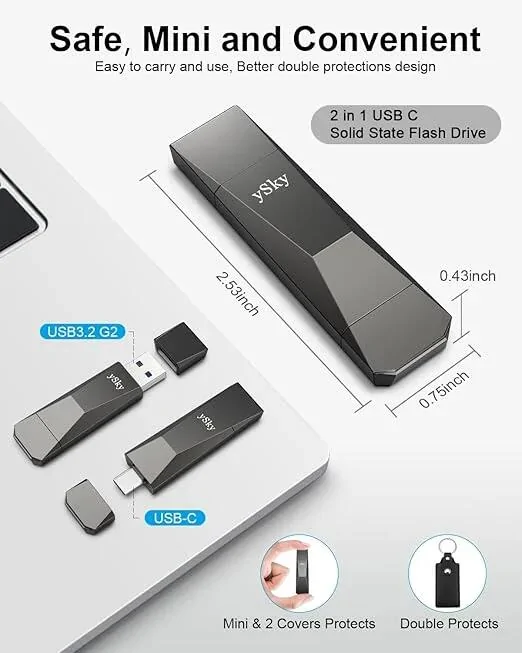
- The drive is 1TB, so plenty of room for sentry mode recordings and media
- It has both USB-A (to fit in the glovebox) and USB-C (for computer/laptop)
- It's small, so no problem fitting in the glovebox without an extension
- It looks like a freaking Cybertruck
Most people (like me) would think that you create the required "TeslaCam" folder and then load your music/media in folders. Then you plug it into the glovebox and you find that the sentry feature works fine, but the music is nowhere to be found. "USB" does not appear in the list of music sources.
The key to making it work is that you need to create different partitions (volumes) on the USB drive, rather than just using the default single partition it comes with.
Windows users can do that in Disk Management, which you can open by right-clicking the Start menu button and selecting Disk Management. Find the new USB drive, then right-click the volume that takes up the entire drive and select "Delete Volume".
Then you need to create two simple volumes: one for sentry and one for media. Be sure to format them as exFAT, not as NTFS. The sentry partition I named "TeslaCam" and made it 850000 MB. The media partition I named "Media" and just took up the remaining space (somewhere around 128 GB). You can change the sizes based on your needs. Try to figure out the right amount of space (now and future), because you don't want to do it again (unless you use a tool like Partition Magic, which makes it easy).
The drive letters you assign on the computer have no impact on what happens in the car, so use what you want. Each partition gets its own drive letter.
Inside the TeslaCam Partition you need to create a folder named "TeslaCam". Apparently the exact case is important, so don't call it "teslacam". If you want you can just copy the TeslaCam folder and all its contents from the drive that Tesla installed for you into the TeslaCam partition on your new drive, and it will carry over all your existing recordings.
Inside the Media partition you can organize your media into whatever folder structure you wish. Choose folders that are logical for you and will be easy to navigate in the car. I have found when using USB-based media in a car, the folder structure is the most important thing, because if you rely on the metadata in each file, any mistakes will make browsing by album, artist, song, etc., very difficult.
My understanding (although Tesla does not provide great guidance on this) is that the supported file formats are FLAC, M4A ("Apple Lossless"), MP3, OGG, and WAV. I use MP3 for any music I'm going to use in a car, because I know it will always work.
You can also make a separate partition for Lightshow and within the Media partition, have a separate folder for Boombox custom lock sounds.
When it's all setup correctly, just plug the drive into the USB-A port in the glovebox. Test to be sure the sentry footage is working. Then when the media player is showing, select Source, and USB should be among them. After selecting USB, you can find the "Folder" option at the top for browsing by folder.
I hope this helps people looking to play their own media in the Cybertruck. It took me a lot of trial and error to figure this all out, because the owner's manual doesn't help at all.
Feel free to leave any other tips you might have.
Sponsored