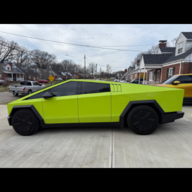
sybertruck
Active member
- Joined
- Dec 26, 2024
- Threads
- 4
- Messages
- 44
- Reaction score
- 99
- Location
- USA
- Vehicles
- 2024 Cybertruck Foundation

- Thread starter
- #1
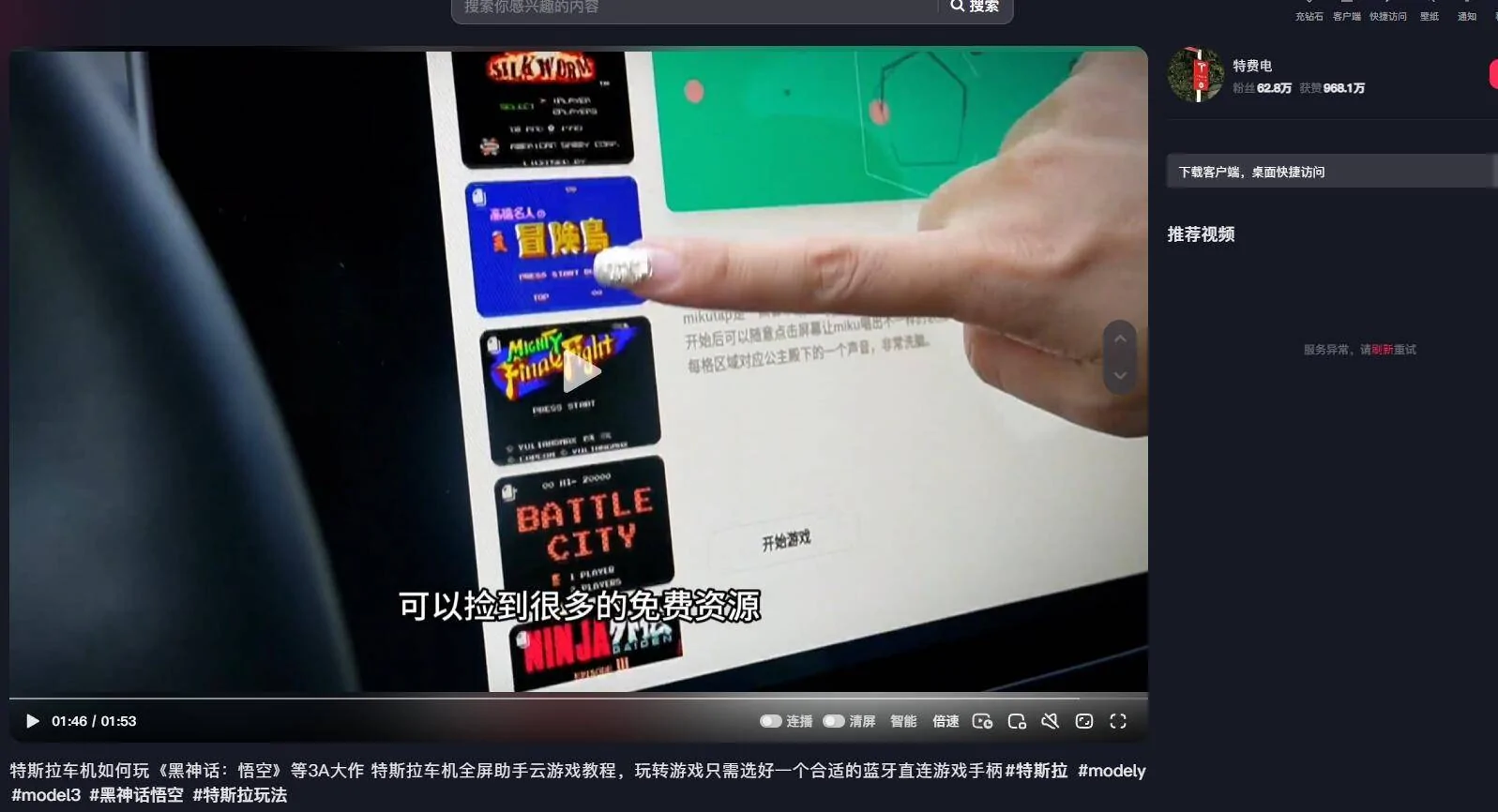
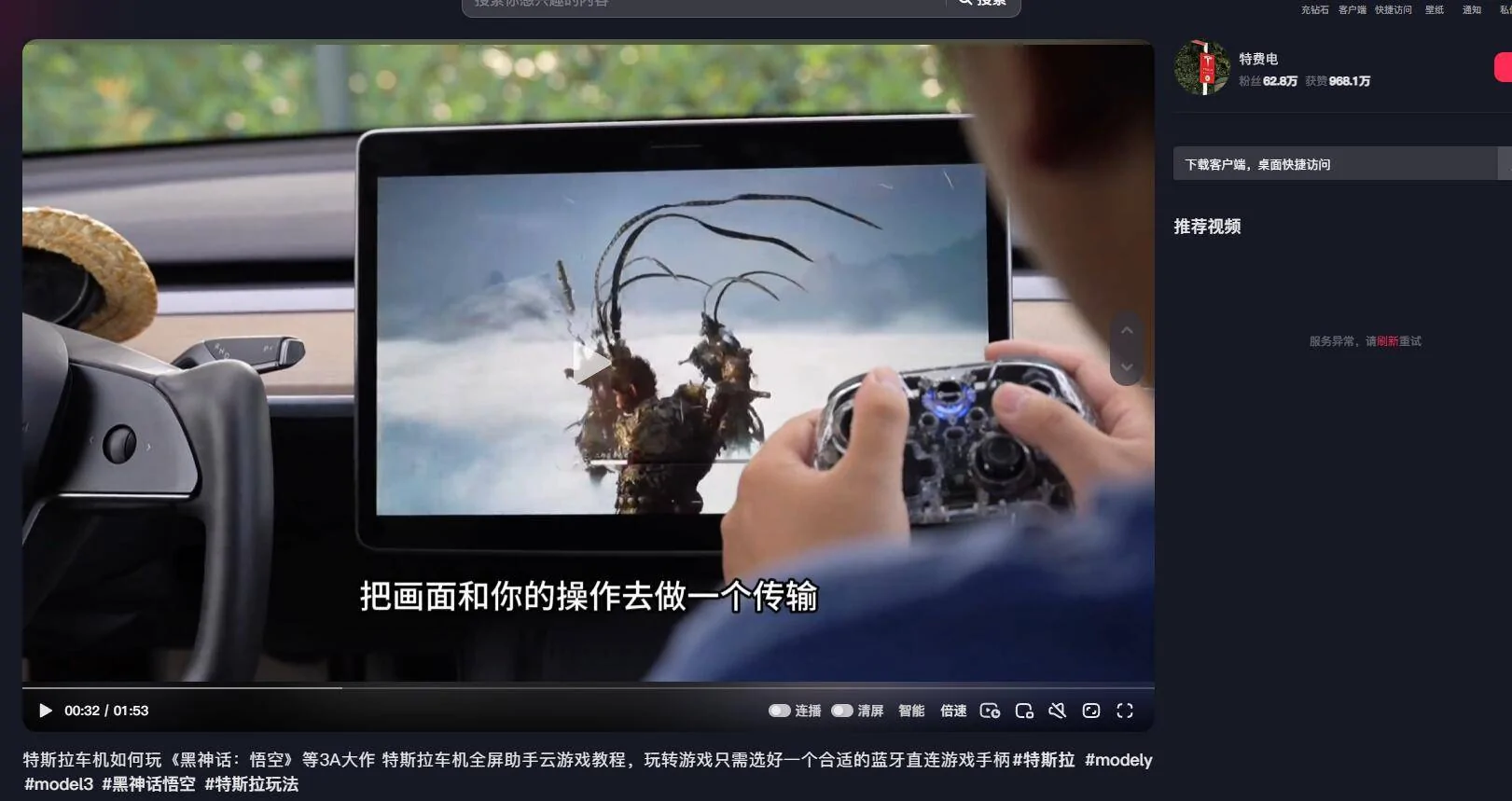
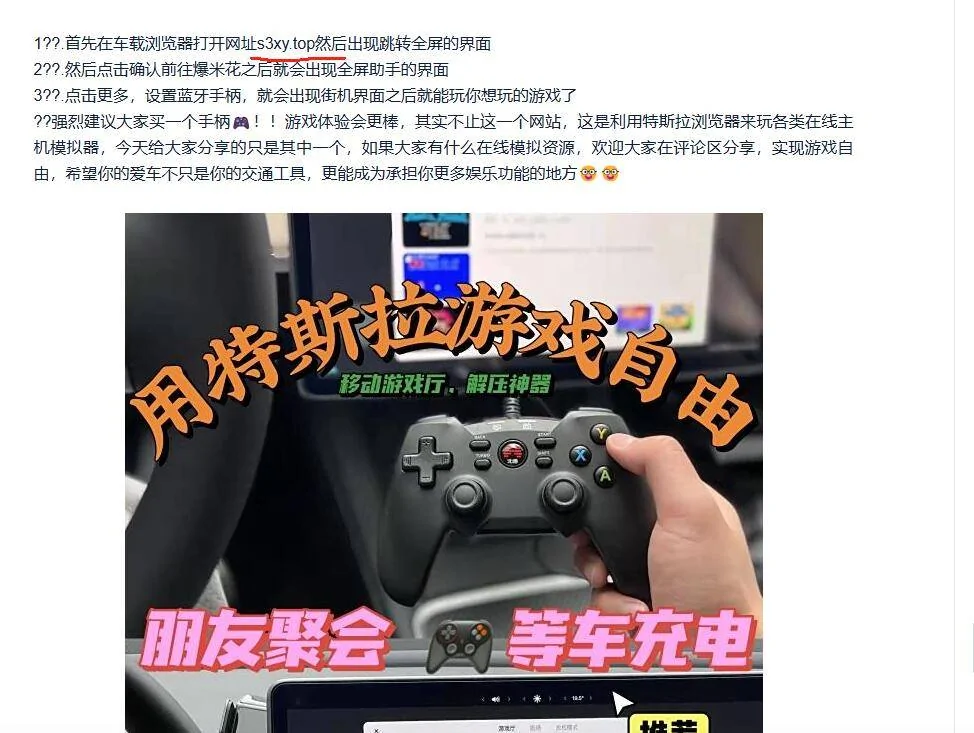
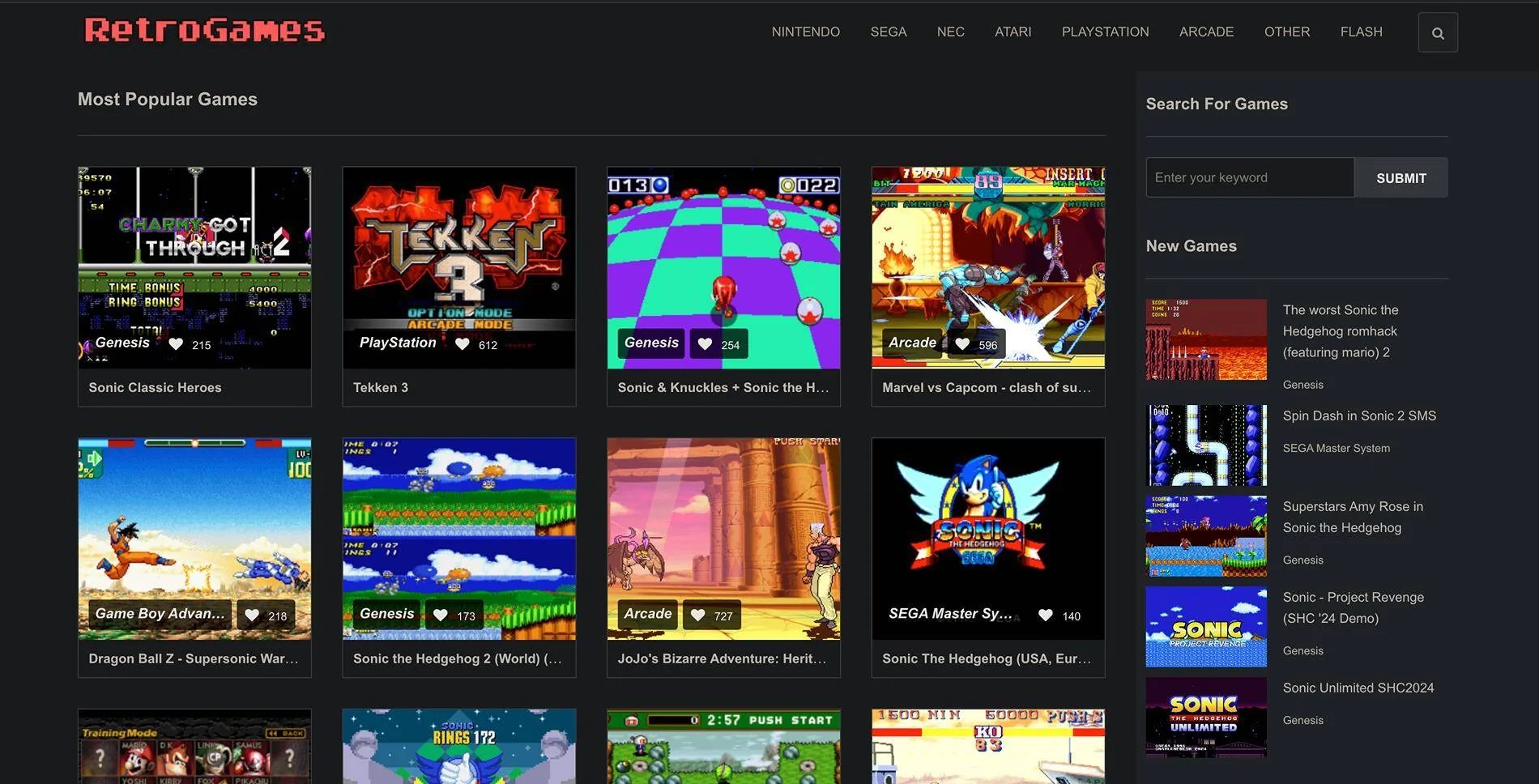
I’ve been trying to figure out how to play video games on this Tesla machine, considering our limited hardware options and the incompatibility of Steam due to hardware restrictions. I tried using A Better Theater, which worked, but I couldn’t hear any sounds when trying to access www.retrogames.cc. Surprisingly, the PS5 Bluetooth controller worked through the web via Bluetooth! I also put this charger on the floor storage area to charge it
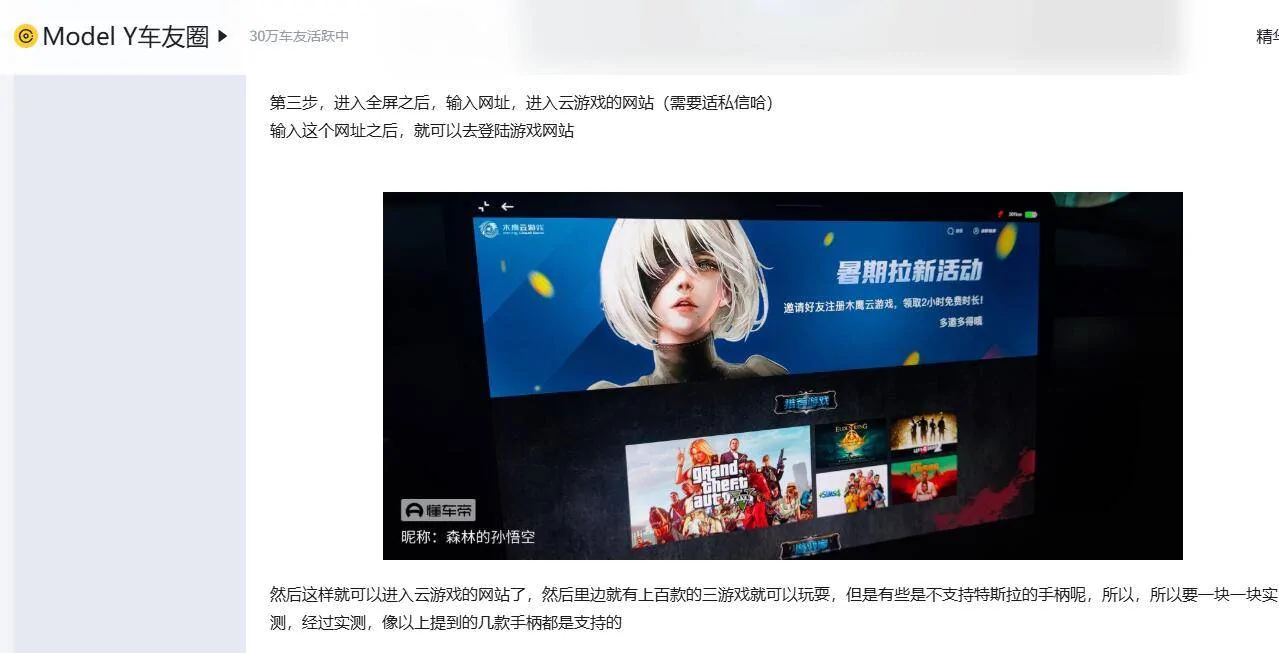
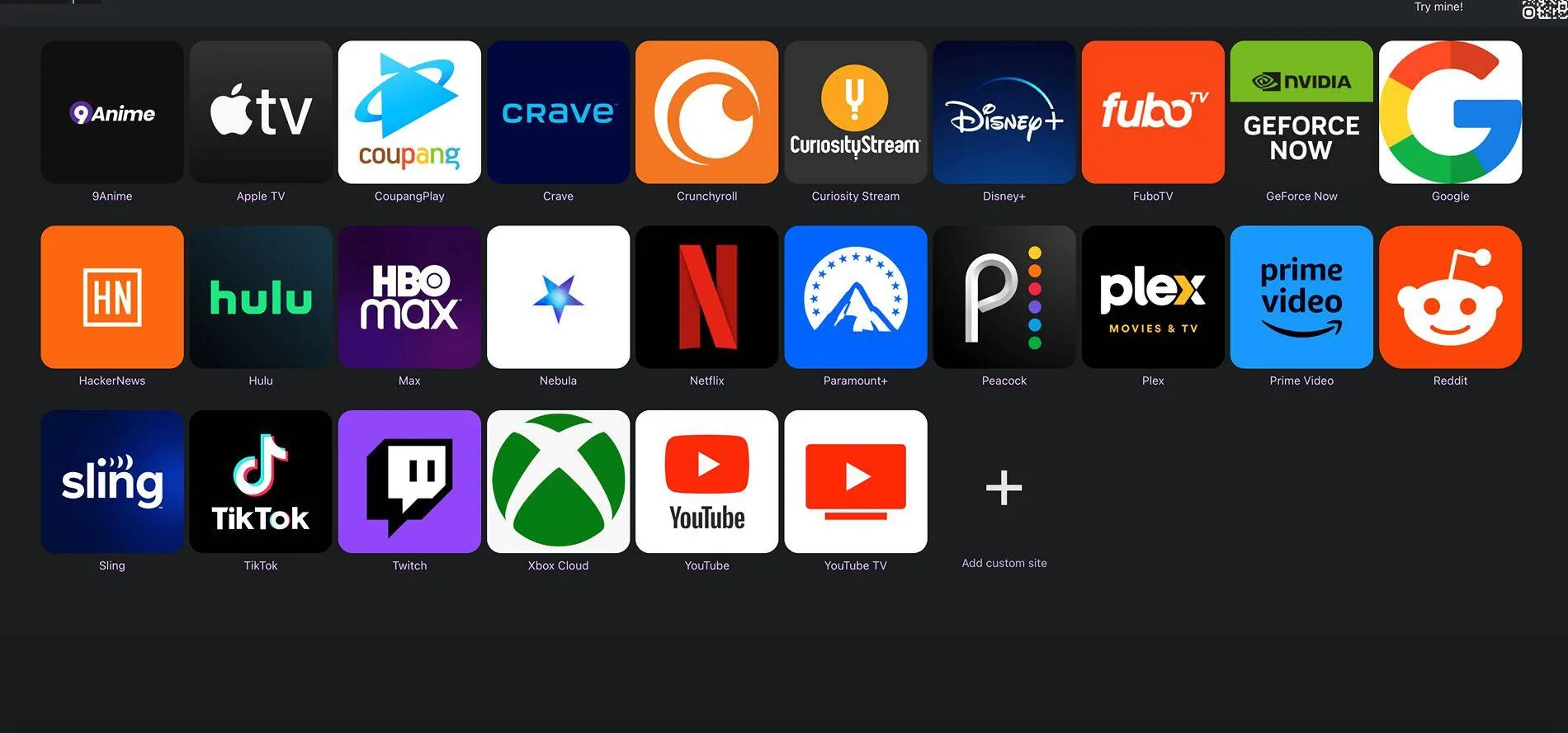
However, I couldn’t get any sound through the Tesla browser when loading the A Better Theater website. I then tried https://www.fullscreentesla.com/ , hit the "+" Add Customer Site and put www.retrogames.cc
Refresh and Retro Games will show up(with broken image link for some reason but works still), click on it and wait about a few seconds and you will get a prompt asking "Are you sure you want to leave YouTube?"
Click "Go to Site", then "Search" the desired game on the top right corner and once it loaded, I tapped Full Screen and then the “x” on the ad that appeared since ad blockers (all plugins and extensions are not allowed on the Tesla browser).
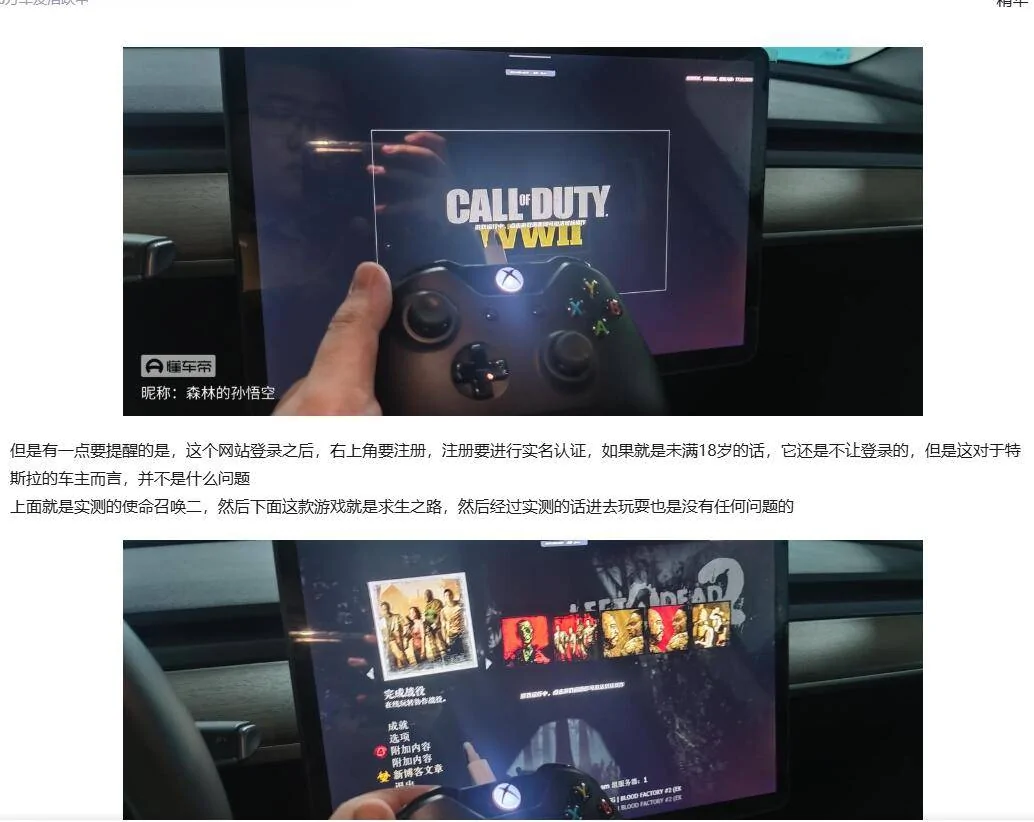
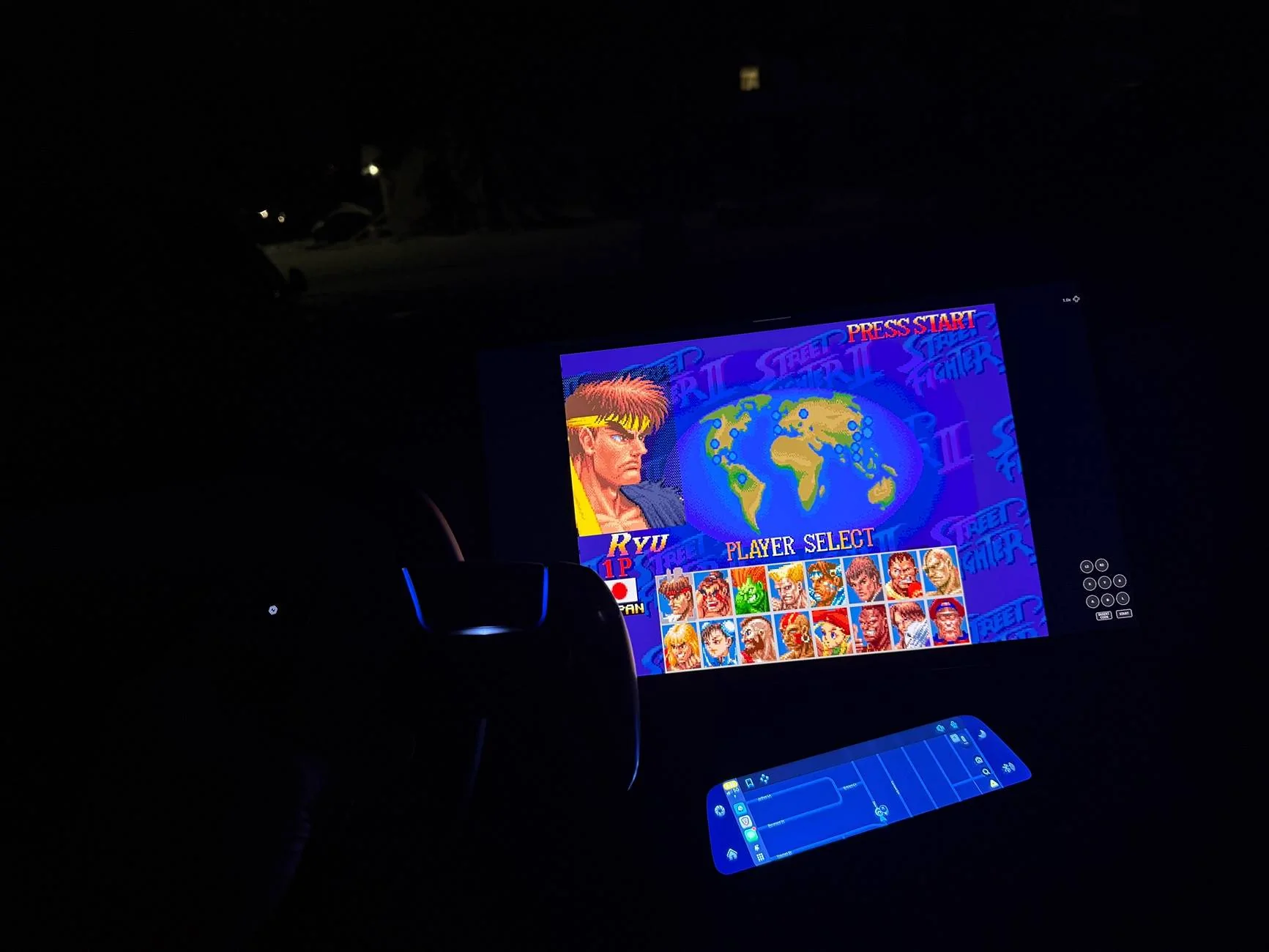
To my delight, it worked with sound! I was able to play Street Fighter, RC Pro Am, Marvel vs Capcom, and MOST ANY other game I wanted to play.
Anyway, I hope this helps. Now we can have some cool gaming options to keep us entertained during supercharger and rest stop stops. I am sure many other gaming sites will work, so if you find any feel free to share them here.
--------------------------------------------------------------------------------------
Easy Step by Step Instructions:
1. Buy a PS5 Bluetooth Controller – It works via Bluetooth on the Tesla browser.
2. Switch to Full Screen Tesla – Go to https://www.fullscreentesla.com (set as Favorite for Tesla browser) click ”+” Add Custom Site, and enter www.retrogames.cc.
3. Refresh & Access Games – After refreshing, click Retro Games and wait 20-30 seconds for the “Are you sure you want to leave YouTube?” prompt.
4. Enter & Load a Game – Click “Go to Site”, then use Search to find your game.
5. Enable Full Screen & Dismiss Ads – Tap Full Screen, close any ads (since ad blockers aren’t allowed on Tesla’s browser).
6. Enjoy Full Screen Retro Gaming with Sound for free in the Cybertruck! – Games now work with sound, including Street Fighter, RC Pro Am, and Marvel vs Capcom.


However, I couldn’t get any sound through the Tesla browser when loading the A Better Theater website. I then tried https://www.fullscreentesla.com/ , hit the "+" Add Customer Site and put www.retrogames.cc
Refresh and Retro Games will show up(with broken image link for some reason but works still), click on it and wait about a few seconds and you will get a prompt asking "Are you sure you want to leave YouTube?"
Click "Go to Site", then "Search" the desired game on the top right corner and once it loaded, I tapped Full Screen and then the “x” on the ad that appeared since ad blockers (all plugins and extensions are not allowed on the Tesla browser).
To my delight, it worked with sound! I was able to play Street Fighter, RC Pro Am, Marvel vs Capcom, and MOST ANY other game I wanted to play.
Anyway, I hope this helps. Now we can have some cool gaming options to keep us entertained during supercharger and rest stop stops. I am sure many other gaming sites will work, so if you find any feel free to share them here.
--------------------------------------------------------------------------------------
Easy Step by Step Instructions:
1. Buy a PS5 Bluetooth Controller – It works via Bluetooth on the Tesla browser.
2. Switch to Full Screen Tesla – Go to https://www.fullscreentesla.com (set as Favorite for Tesla browser) click ”+” Add Custom Site, and enter www.retrogames.cc.
3. Refresh & Access Games – After refreshing, click Retro Games and wait 20-30 seconds for the “Are you sure you want to leave YouTube?” prompt.
4. Enter & Load a Game – Click “Go to Site”, then use Search to find your game.
5. Enable Full Screen & Dismiss Ads – Tap Full Screen, close any ads (since ad blockers aren’t allowed on Tesla’s browser).
6. Enjoy Full Screen Retro Gaming with Sound for free in the Cybertruck! – Games now work with sound, including Street Fighter, RC Pro Am, and Marvel vs Capcom.
Sponsored
Last edited: