

Sponsored

Retired Jarhead

Well-known member
First Name
Troy
Joined
Apr 9, 2024
Threads
5
Messages
76
Reaction score
137
Location
Washington
Vehicles
2019 Volvo XC40, 2005 Cadillac Deville, 2005 Road Glide, 1991 Springer
Occupation
Retired
Country flag
can someone that is smart, post directions on how to get it from the computer then installed on the truck.
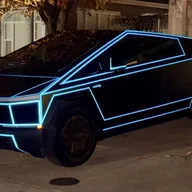
Like some, I like the lock sound, but the Tron stuff is a little to much for me.
Sponsored
 

photon

Well-known member
First Name
Photon
Joined
May 7, 2025
Threads
5
Messages
51
Reaction score
76
Location
california
Vehicles
Cybertruck, X plaid
Country flag
can someone that is smart, post directions on how to get it from the computer then installed on the truck.
Like some, I like the lock sound, but the Tron stuff is a little to much for me.
from grok (someone smart)


Changing the Lock Sound on Your Tesla Cybertruck


The Cybertruck’s lock sound (the audible confirmation when you lock the doors, often a default train-like horn) can be customized using Tesla’s built-in features. This is available on vehicles with the Pedestrian Warning System (PWS) external speaker, which all Cybertrucks have, and requires software version 2023.44.30 or later (most are on much newer versions by October 2025). You can select from Tesla’s preset sounds (like a fart, quack, or goat scream) or upload a custom one via USB. Note: Custom sounds play through the external speaker and replace the default horn—there’s no built-in volume control for the lock chime yet, so keep files short and balanced.


Option 1: Use Tesla’s Preset Sounds (No USB Needed)


1. On your Cybertruck’s touchscreen, tap Controls (car icon at the bottom).


2. Go to Locks > Lock Confirmation Sound and toggle it on (this enables the default horn if no custom sound is set).


3. For fun presets: Tap Toybox (entertainment icon) > Boombox.


4. Under Boombox, find Lock Sound and select from the dropdown (e.g., “Fart,” “Old School Horn,” or “Applause”). Toggle it on.


5. Lock your Cybertruck (via app, key fob, or walk-away) to test. If it doesn’t play, restart the touchscreen (hold both scroll wheels on the steering yoke).


This uses the external speaker and works with walk-away locking. To revert to the original train horn, turn off the Boombox Lock Sound and ensure Lock Confirmation Sound is on in Controls > Locks.


Option 2: Upload a Custom Sound (Via USB)


For full personalization (e.g., movie quotes, game sounds, or your own recording), use a USB drive. Popular options include the K.I.T.T. scanner from Knight Rider, Mario warp pipe, or Xbox achievement unlock—search sites like NotATeslaApp.com or MyInstants.com for free downloads.


1. Prepare the Audio File:


• Download or record a short clip (under 5-10 seconds to avoid awkward delays).


• Convert to WAV format (use free tools like online converters if it’s MP3).


• Keep file size under 1MB (trim if needed; aim for 16-bit, 44.1kHz for best quality).


• Rename exactly to LockChime.wav (capital L and C—case-sensitive).


2. Set Up the USB Drive:


• Use a formatted USB drive (FAT32; any size works, but 32GB+ if using for Sentry Mode too).


• Copy LockChime.wav to the root directory (not in a folder).


• Safely eject the drive from your computer.


3. Install in Your Cybertruck:


• Insert the USB into the glovebox USB port (data-enabled for Sentry Mode).


• On the touchscreen: Toybox > Boombox > Lock Sound > Select USB from the dropdown.


• Toggle Lock Sound on. The custom file should load automatically.


4. Test and Troubleshoot:


• Lock the vehicle—it should play your sound instead of the default.


• If no sound: Check file name/format, reinsert USB, or reboot (Controls > Safety > Power Off, wait 2 minutes).


• To switch sounds: Replace the file on USB and reselect USB in Boombox (only one custom at a time).


• Note: Keycard locks may default to a beep; phone/app locks use the custom.


Tips and Notes


• Cybertruck-Specific: Early builds had a loud default “train horn”—customs help tame it. Newer updates (like 2024 Spring Release) added more presets.


• Inspiration: Users love subtle chimes (e.g., airplane seatbelt) or fun ones (Portal turret phrases). Download packs from Tesla enthusiast sites, but verify compatibility.


• Revert to Default: Eject USB, select a preset, or toggle off in Boombox and enable in Controls > Locks.


• If your software is outdated, go to Controls > Software and check for updates (enable “Advanced” for betas if needed).


This adds a fun, personal vibe—enjoy the heads-turning reactions! If issues persist, check Tesla’s app support or forums like Cybertruck Owners Club.
 

Retired Jarhead

Well-known member
First Name
Troy
Joined
Apr 9, 2024
Threads
5
Messages
76
Reaction score
137
Location
Washington
Vehicles
2019 Volvo XC40, 2005 Cadillac Deville, 2005 Road Glide, 1991 Springer
Occupation
Retired
Country flag
from grok (someone smart)


Changing the Lock Sound on Your Tesla Cybertruck


The Cybertruck’s lock sound (the audible confirmation when you lock the doors, often a default train-like horn) can be customized using Tesla’s built-in features. This is available on vehicles with the Pedestrian Warning System (PWS) external speaker, which all Cybertrucks have, and requires software version 2023.44.30 or later (most are on much newer versions by October 2025). You can select from Tesla’s preset sounds (like a fart, quack, or goat scream) or upload a custom one via USB. Note: Custom sounds play through the external speaker and replace the default horn—there’s no built-in volume control for the lock chime yet, so keep files short and balanced.


Option 1: Use Tesla’s Preset Sounds (No USB Needed)


1. On your Cybertruck’s touchscreen, tap Controls (car icon at the bottom).


2. Go to Locks > Lock Confirmation Sound and toggle it on (this enables the default horn if no custom sound is set).


3. For fun presets: Tap Toybox (entertainment icon) > Boombox.


4. Under Boombox, find Lock Sound and select from the dropdown (e.g., “Fart,” “Old School Horn,” or “Applause”). Toggle it on.


5. Lock your Cybertruck (via app, key fob, or walk-away) to test. If it doesn’t play, restart the touchscreen (hold both scroll wheels on the steering yoke).


This uses the external speaker and works with walk-away locking. To revert to the original train horn, turn off the Boombox Lock Sound and ensure Lock Confirmation Sound is on in Controls > Locks.


Option 2: Upload a Custom Sound (Via USB)


For full personalization (e.g., movie quotes, game sounds, or your own recording), use a USB drive. Popular options include the K.I.T.T. scanner from Knight Rider, Mario warp pipe, or Xbox achievement unlock—search sites like NotATeslaApp.com or MyInstants.com for free downloads.


1. Prepare the Audio File:


• Download or record a short clip (under 5-10 seconds to avoid awkward delays).


• Convert to WAV format (use free tools like online converters if it’s MP3).


• Keep file size under 1MB (trim if needed; aim for 16-bit, 44.1kHz for best quality).


• Rename exactly to LockChime.wav (capital L and C—case-sensitive).


2. Set Up the USB Drive:


• Use a formatted USB drive (FAT32; any size works, but 32GB+ if using for Sentry Mode too).


• Copy LockChime.wav to the root directory (not in a folder).


• Safely eject the drive from your computer.


3. Install in Your Cybertruck:


• Insert the USB into the glovebox USB port (data-enabled for Sentry Mode).


• On the touchscreen: Toybox > Boombox > Lock Sound > Select USB from the dropdown.


• Toggle Lock Sound on. The custom file should load automatically.


4. Test and Troubleshoot:


• Lock the vehicle—it should play your sound instead of the default.


• If no sound: Check file name/format, reinsert USB, or reboot (Controls > Safety > Power Off, wait 2 minutes).


• To switch sounds: Replace the file on USB and reselect USB in Boombox (only one custom at a time).


• Note: Keycard locks may default to a beep; phone/app locks use the custom.


Tips and Notes


• Cybertruck-Specific: Early builds had a loud default “train horn”—customs help tame it. Newer updates (like 2024 Spring Release) added more presets.


• Inspiration: Users love subtle chimes (e.g., airplane seatbelt) or fun ones (Portal turret phrases). Download packs from Tesla enthusiast sites, but verify compatibility.


• Revert to Default: Eject USB, select a preset, or toggle off in Boombox and enable in Controls > Locks.


• If your software is outdated, go to Controls > Software and check for updates (enable “Advanced” for betas if needed).


This adds a fun, personal vibe—enjoy the heads-turning reactions! If issues persist, check Tesla’s app support or forums like Cybertruck Owners Club.
Sponsored


Top