Sponsored

Uploading a custom license plate background

bentoncalder

Well-known member
First Name
Benton
Joined
Oct 24, 2024
Threads
18
Messages
123
Reaction score
201
Location
Vancouver BC
Vehicles
Cyberbeast, Model Y
Country flag
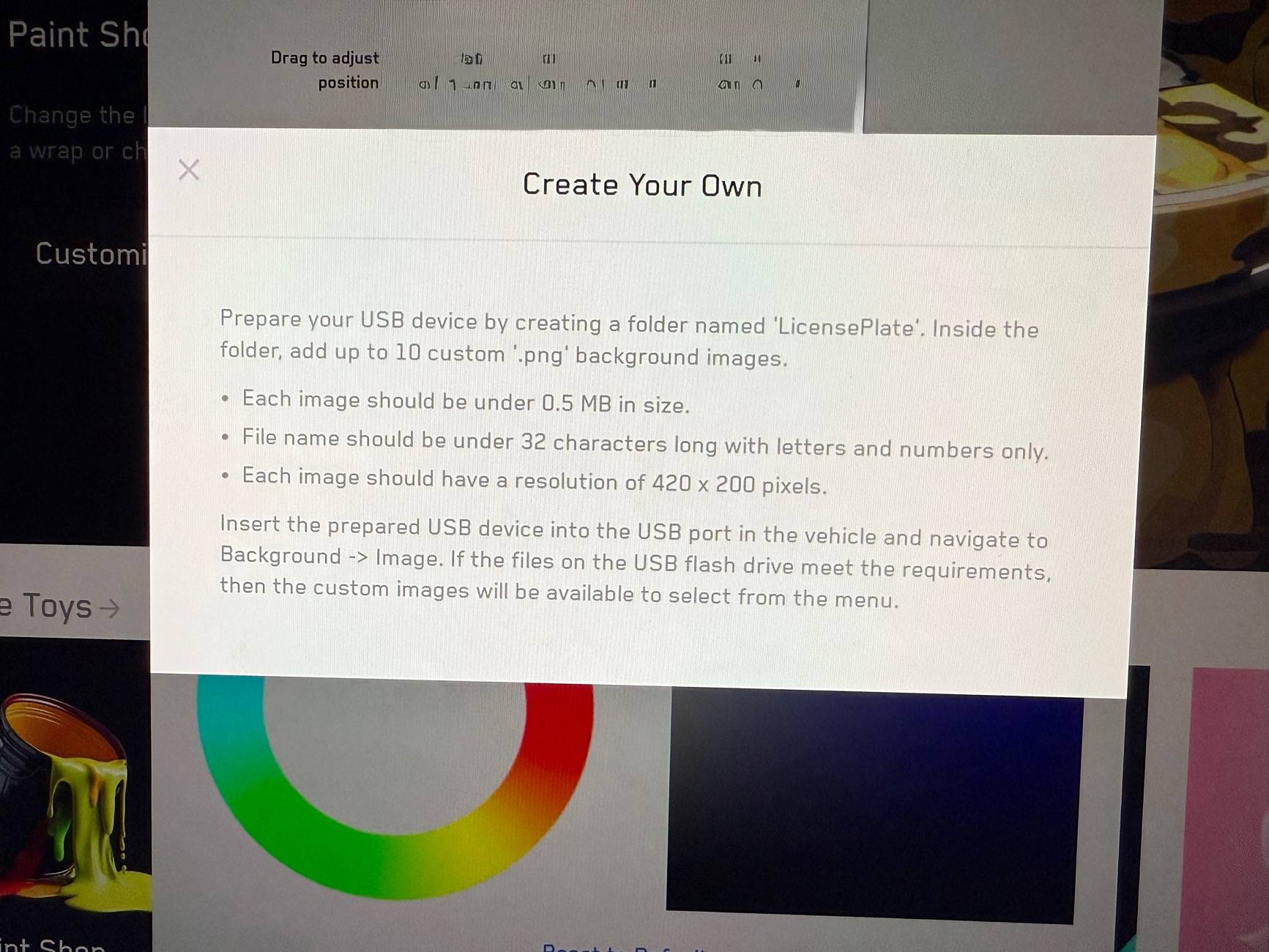
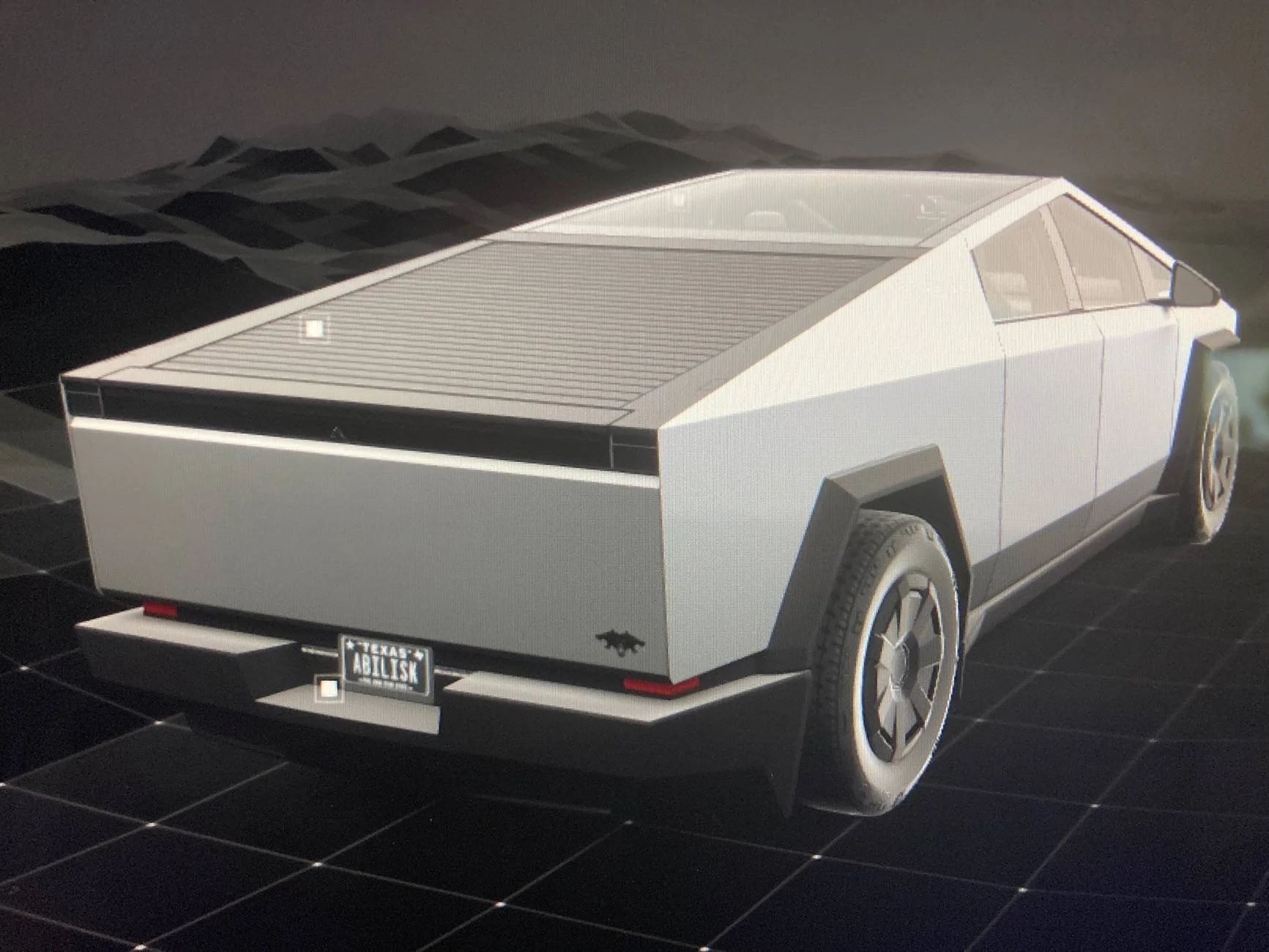
Help please. I don’t know what I’m doing wrong. Has anyone figured out how to get his to work? Pretty sure I’m following all of the steps…
Tesla Cybertruck Uploading a custom license plate background IMG_3993
Sponsored

 
OP
OP
bentoncalder

bentoncalder

Well-known member
First Name
Benton
Joined
Oct 24, 2024
Threads
18
Messages
123
Reaction score
201
Location
Vancouver BC
Vehicles
Cyberbeast, Model Y
Country flag
IMG_6215.jpeg

Yup, followed same directions as above.
OK gotcha. I guess my next question is did you use a separate USB drive or did you use the same one that you use for the Tesla cam and or boombox? Or custom lock sound?
 

rlhamil

Well-known member
First Name
Richard
Joined
Apr 1, 2020
Threads
6
Messages
553
Reaction score
603
Location
Glen Burnie, Maryland
Vehicles
2002 Trans Am WS6, 2018 Kia Sportage, 2024 Cyberbeast FS
Occupation
retired
Country flag
Hmm. Mine's not working. It's the appropriately named folder, in the other partition (NOT the TeslaCam partition).

The macOS (also Linux and other Unix-like OS's, and cygwin on Windows) "file" command describes my image file as follows:

license.png: PNG image data, 420 x 200, 8-bit/color RGBA, non-interlaced

The size and basic format is correct, but I'm wondering if the part after that (8-bit etc) is an issue.


ABILISK

Well-known member
Joined
Nov 6, 2024
Threads
22
Messages
2,133
Reaction score
3,864
Location
DFW
Website
ts.la
Vehicles
‘24 Beast
Country flag
Did you partition it or just keep it for teslacam?
It won’t work if you put the LicensePlate folder in another folder. Just add it to the flash drive’s “Home Screen” if you will. One folder exists from the factory. Add a second one, name it LicensePlate, and put your image in there.
 
OP
OP
bentoncalder

bentoncalder

Well-known member
First Name
Benton
Joined
Oct 24, 2024
Threads
18
Messages
123
Reaction score
201
Location
Vancouver BC
Vehicles
Cyberbeast, Model Y
Country flag
It won’t work if you put the LicensePlate folder in another folder. Just add it to the flash drive’s “Home Screen” if you will. One folder exists from the factory. Add a second one, name it LicensePlate, and put your image in there.
Ok thank you I think I understand. My USB is partitioned though so that I could use custom lock sounds. And so I’m taking from your comment that I should just use “main” partition that is for the Tesla cam stuff. Correct?
 

ABILISK

Well-known member
Joined
Nov 6, 2024
Threads
22
Messages
2,133
Reaction score
3,864
Location
DFW
Website
ts.la
Vehicles
‘24 Beast
Country flag
Ok thank you I think I understand. My USB is partitioned though so that I could use custom lock sounds. And so I’m taking from your comment that I should just use “main” partition that is for the Tesla cam stuff. Correct?
I’m not sure what partitioning is, so that may be the root of the problem, but try adding a folder to same side as the Tesla cam one if you haven’t yet.
 

rlhamil

Well-known member
First Name
Richard
Joined
Apr 1, 2020
Threads
6
Messages
553
Reaction score
603
Location
Glen Burnie, Maryland
Vehicles
2002 Trans Am WS6, 2018 Kia Sportage, 2024 Cyberbeast FS
Occupation
retired
Country flag
I’m not sure what partitioning is, so that may be the root of the problem, but try adding a folder to same side as the Tesla cam one if you haven’t yet.
Partitioning makes it like two or more totally separate drives, but on one physical drive, and (assuming the OS supports it, which Tesla's does) both accessible at the same time.

Each partition has its own top level. On Windows, they'd each have a letter. On a Mac, removable media would typically end up as one or more folders under /Volumes.

Each partition has a fixed portion of the total available space. (there are situations that look otherwise, but they're not relevant here) So when partitioning, one would plan accordingly.

Assume that repartitioning will lose track of (but not truly erase) all existing data on the drive. (there are exceptions, but not relevant here, I would think)

From the factory, there's one partition on the Tesla supplied thumb drive. It's so far worked (give or take quirks a few updates back) to repartition to dedicate one partition for TeslaCam, and have the folders for everything else in a 2nd partition. (TeslaCam obviously needs to be read/write, the rest should be able to be read-only.) Odd if it doesn't work for the LicensePlate folder.
 
OP
OP
bentoncalder

bentoncalder

Well-known member
First Name
Benton
Joined
Oct 24, 2024
Threads
18
Messages
123
Reaction score
201
Location
Vancouver BC
Vehicles
Cyberbeast, Model Y
Country flag
Partitioning makes it like two or more totally separate drives, but on one physical drive, and (assuming the OS supports it, which Tesla's does) both accessible at the same time.

Each partition has its own top level. On Windows, they'd each have a letter. On a Mac, removable media would typically end up as one or more folders under /Volumes.

Each partition has a fixed portion of the total available space. (there are situations that look otherwise, but they're not relevant here) So when partitioning, one would plan accordingly.

Assume that repartitioning will lose track of (but not truly erase) all existing data on the drive. (there are exceptions, but not relevant here, I would think)

From the factory, there's one partition on the Tesla supplied thumb drive. It's so far worked (give or take quirks a few updates back) to repartition to dedicate one partition for TeslaCam, and have the folders for everything else in a 2nd partition. (TeslaCam obviously needs to be read/write, the rest should be able to be read-only.) Odd if it doesn't work for the LicensePlate folder.
Thank you for a thorough explanation!
Sponsored


Top