kosmo886
Well-known member
- First Name
- Brett
- Joined
- Dec 10, 2023
- Threads
- 52
- Messages
- 101
- Reaction score
- 22
- Location
- Boston, MA
- Vehicles
- Model X

Is this in addition to whatever storage is already onboard in the CT? Where does the additional USB stick plug in?
MacOS instructions here.
BASICALLY [updated 13 May 24]:
- Glovebox USB port only (you may want to purchase a larger stick like this one)
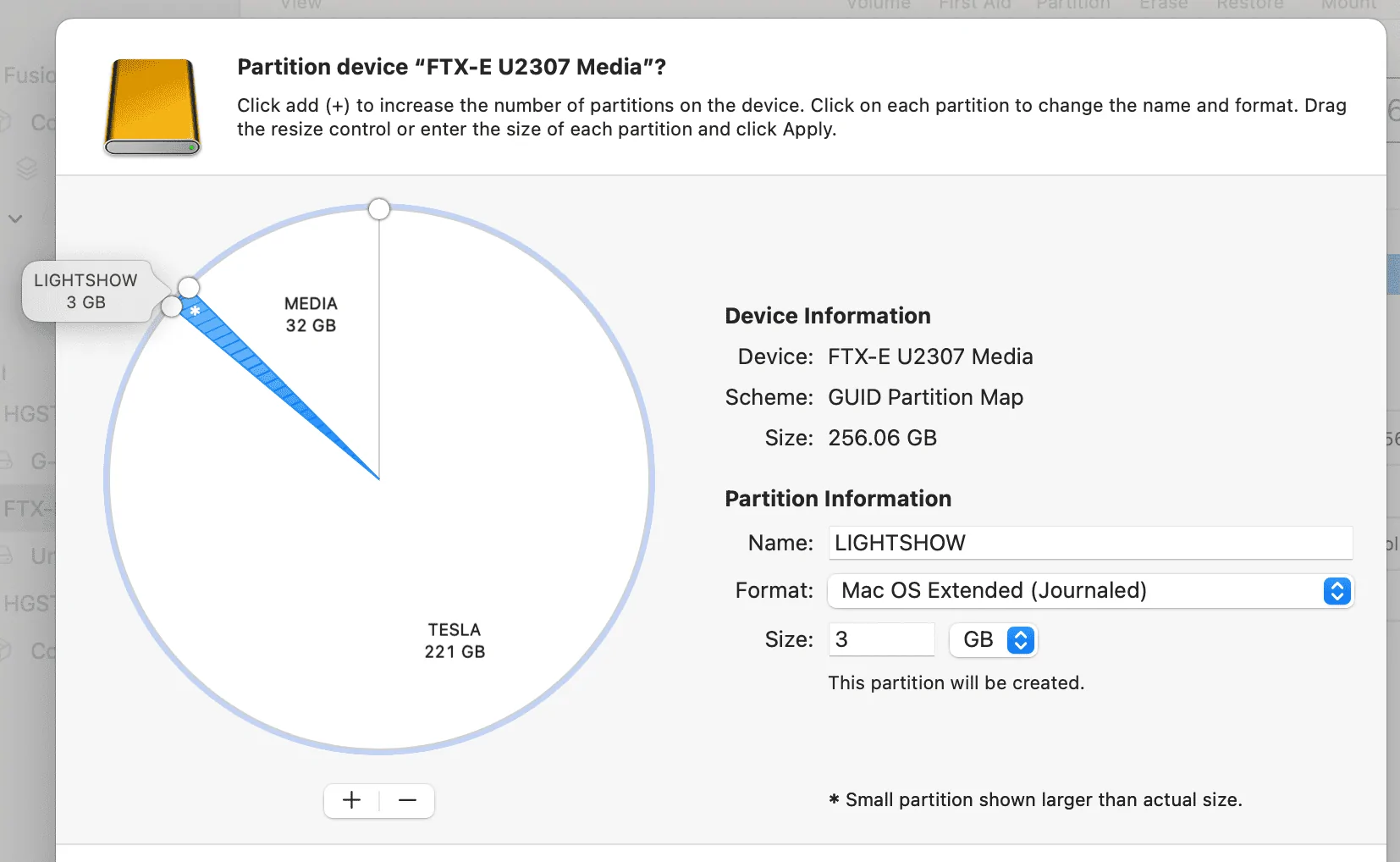
- Must partition and format (GUID/exFAT) the USB stick
- Partition "TESLA":
- Folder "TeslaCam" (case-sensitive!)
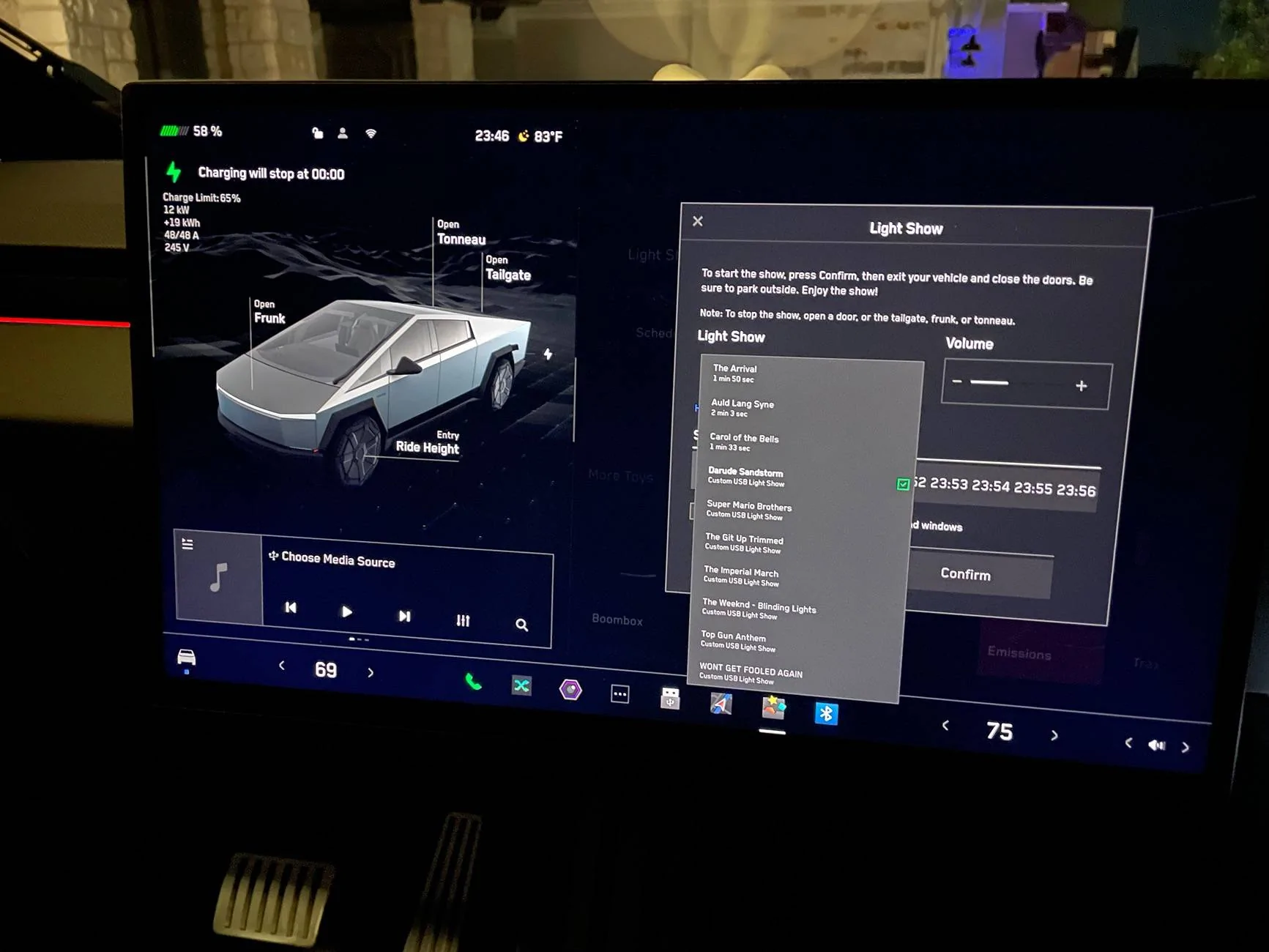
- Partition "LIGHTSHOW":
- Folder "LightShow"
- Partition "MEDIA":
- Folder "Boombox"
- Folder "Music"
"Do I really need multiple partitions?" Apparently just adding folders on the primary partition next to "TeslaCam" will not work. Besides, the Sentry/TeslaCam partitions get written heavily, while the others are basically read-only, so it's best to keep them separate. The partition names do not matter, but the folder names are critical and case-sensitive.
Stop any camera recording (Park, and disable Sentry) before removing the USB stick to prevent data loss.
To replace your lock sound, place a file called "LockChime.wav" in the root folder of a USB partition. I used my "MUSIC" partition, I don't know if it will work on any of the others.
Then, in Boombox, you should have a dropdown list for Lock Sounds that includes the choice "USB". Once you select it and test it, the USB drive itself can be removed since the sound is copied. To change to new custom sound, pick something else in the picklist before inserting the updated thumbdrive.
To get a reasonable volume, I used my PC to reduce it by 15db from a "normal" level. I also had to mix it down to mono to stay under the 1MB limit. It must be in WAV format.
Sponsored


 !
!