LiveFreeOrDieBob
Well-known member
- First Name
- Bob
- Joined
- Oct 13, 2022
- Threads
- 4
- Messages
- 123
- Reaction score
- 131
- Location
- New Hampshire
- Vehicles
- F150, Cyberbeast
- Occupation
- Contact Center Consulting

One more thing - make sure you are using '%24' and not '$' in the option code portion of the URL. It has to be URL-encoded to work, which is basically the way "special characters" like '$' are encoded when used in web addresses. I noticed earlier in the thread that someone put the option code as $CTH1 (CTH1 is probably CyberTruck Horn 1?) and that *is* the option code for the new horn, but you can't put that in the URL with the dollar sign, you have to URL-encode it first.This worked for me, without first receiving the message.
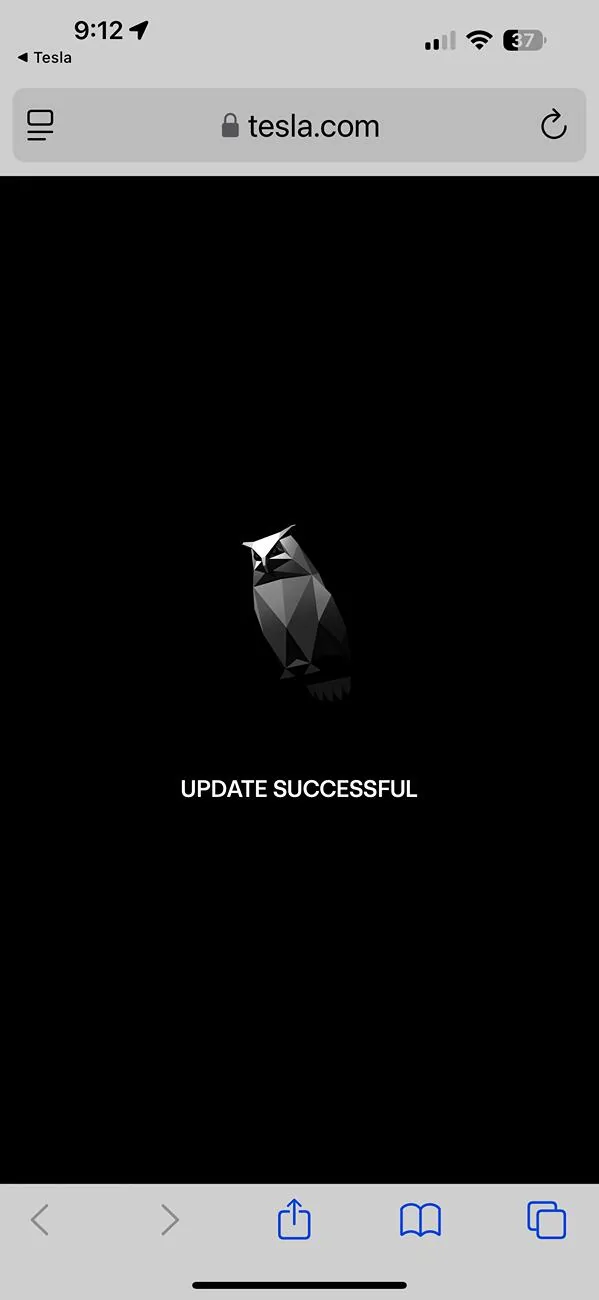
Inserting my information into the url text and browsing to that link resulted in a response page showing the cyber owl and "UPDATE SUCCESSFUL" text. The charge happened sometime within a few minutes of getting the response.
Here are three suggestions:
1. Make sure you want the new horn. You can't go back to the old one - at least, for now.
2. Replace the right and left brackets and the text between them with your VIN and reservation number.
3. Include the "RN" in your reservation number.
Happy cyberhonking!
BTW - if there is anyone out there who is choosing NOT to do this and has the original horn, I wonder if you'd be able to see if there is an option code for the old horn. I'd be surprised if there was, since this option code is referencing a firmware update versus the old horn being a physical horn, but would be interesting to confirm. Maybe if there IS an option code for the old horn, we could change it back by substituting that old option code into the URL?
To see the option codes for your truck (not for the faint of heart/non-techies) you can go on your web browser to the Tesla site, log in, and then view the Details popup for your truck.
Sponsored