Sponsored

Custom Lightshows no longer show up

rudedawg78

Well-known member
First Name
Ernie
Joined
Jun 8, 2020
Threads
46
Messages
1,814
Reaction score
3,019
Location
South Carolina
Vehicles
2024 AWD Cybertruck (Foundation Series) "Wraith"
Occupation
Retired USAF, Emergency Manager
Country flag
Can you please explain how you did this? I have a bunch of separate usb sticks, one for each light show. I didn’t know you could have them all show up on the drop down list. That is so much better. Also, how did you set up the partition for the sentry and dash cam? Do they each need a separate root folder? Thanks in advance
No problem. Here is what I did step-by-step:

1) Purchased a portable 2TB Solid State Drive. This is the one I was recommended by another person on this forum. I also got some velcro to attach to the bottom of this drive to secure it in the glove box.

2) When I received it, I formatted the whole drive as a single exFAT partition. I used the windows disk management tool.

3) I then downloaded the free version of this partition manager software.

4) I opened up the software and clicked on the 2TB drive. Once you click it, you will see a partition option. I created 4 partions and made sure I chose "ex-FAT" for each partition. I setup each partition as follows:

- I labeled one F drive (drive letter doesn't matter), and named the partition "TeslaCam" and allocated 1.3TB to it. I also created one folder in that drive named "TeslaCam" You don't need to put anything in that folder because the DashCam and Sentry will record videos and store them in that folder.

- I labeled another partition G drive, and named the partition "Music" and allocated 500GB to it. I also created one folder in that drive named "Music". I then copied and pasted all my mp3s I have on my computer into that folder. You will then be able to access this music later.

- I labeled another partition H drive, and named the partition "LightShow" and allocated 100GB to it. I also created one folder in that drive named "LightShow". I then went online and downloaded some Tesla Light Shows. This is the primary site I used. When you download the light shows, make sure you download both the FSEQ and the MP3 file. Both files must be named the same thing, just different extensions. You then move all those lightshow files into the "LightShow" folder you created in that hard drive partition.

- I labeled my last partition I drive, and named the partition "BoomBox" and allocated 100GB to it. I also created one folder in that drive named "BoomBox". I then went online to search for Tesla Boombox files and downloaded them into the BoomBox folder. A good collection of some BoomBox files is here.

I then plugged my drive into the Cybertruck glovebox replacing the Tesla USB thumb drive and surprisingly everything worked and linked okay.

NOTE: I know there are a million ways to partition a drive and complete this process, but this is just how I did it.

I credit a lot of this to one of the forum members who posted in a different thread about how he formatted his drive. Sorry I forgot who specifically to credit.

Hope this helps out!
Sponsored

 
OP
OP
TeslaKen

TeslaKen

Well-known member
First Name
Ken
Joined
Apr 26, 2024
Threads
108
Messages
1,242
Reaction score
1,695
Location
Overland Park
Website
www.halocybertruck.com
Vehicles
Cyberbeast, M3PD+, GT4, XK140OTS
Occupation
Currently Occupied
Country flag
Is your USB drive formatted as exFAT?
Yes of course ?

Remember I also tried drives belonging to others that worked in their teslas but not mine. Trying process of elimination.
 

rudedawg78

Well-known member
First Name
Ernie
Joined
Jun 8, 2020
Threads
46
Messages
1,814
Reaction score
3,019
Location
South Carolina
Vehicles
2024 AWD Cybertruck (Foundation Series) "Wraith"
Occupation
Retired USAF, Emergency Manager
Country flag
Yes of course ?

Remember I also tried drives belonging to others that worked in their teslas but not mine. Trying process of elimination.
Geez. We will figure this out for you!
 

Jabman

Well-known member
First Name
John
Joined
Dec 3, 2023
Threads
3
Messages
619
Reaction score
1,070
Location
New Jersey
Vehicles
Tesla Model S, Ram 1500
Country flag
No problem. Here is what I did step-by-step:

1) Purchased a portable 2TB Solid State Drive. This is the one I was recommended by another person on this forum. I also got some velcro to attach to the bottom of this drive to secure it in the glove box.

2) When I received it, I formatted the whole drive as a single exFAT partition. I used the windows disk management tool.

3) I then downloaded the free version of this partition manager software.

4) I opened up the software and clicked on the 2TB drive. Once you click it, you will see a partition option. I created 4 partions and made sure I chose "ex-FAT" for each partition. I setup each partition as follows:

- I labeled one F drive (drive letter doesn't matter), and named the partition "TeslaCam" and allocated 1.3TB to it. I also created one folder in that drive named "TeslaCam" You don't need to put anything in that folder because the DashCam and Sentry will record videos and store them in that folder.

- I labeled another partition G drive, and named the partition "Music" and allocated 500GB to it. I also created one folder in that drive named "Music". I then copied and pasted all my mp3s I have on my computer into that folder. You will then be able to access this music later.

- I labeled another partition H drive, and named the partition "LightShow" and allocated 100GB to it. I also created one folder in that drive named "LightShow". I then went online and downloaded some Tesla Light Shows. This is the primary site I used. When you download the light shows, make sure you download both the FSEQ and the MP3 file. Both files must be named the same thing, just different extensions. You then move all those lightshow files into the "LightShow" folder you created in that hard drive partition.

- I labeled my last partition I drive, and named the partition "BoomBox" and allocated 100GB to it. I also created one folder in that drive named "BoomBox". I then went online to search for Tesla Boombox files and downloaded them into the BoomBox folder. A good collection of some BoomBox files is here.

I then plugged my drive into the Cybertruck glovebox replacing the Tesla USB thumb drive and surprisingly everything worked and linked okay.

NOTE: I know there are a million ways to partition a drive and complete this process, but this is just how I did it.

I credit a lot of this to one of the forum members who posted in a different thread about how he formatted his drive. Sorry I forgot who specifically to credit.

Hope this helps out!
Amazing! Thank you so much!


Polen

Well-known member
First Name
Greg
Joined
Apr 12, 2024
Threads
5
Messages
70
Reaction score
115
Location
Texas
Vehicles
Model Y, AWD Cybertruck
Occupation
IT
Country flag
Keep in mind that if you partition your USB drive, DO NOT USE THE FORMAT USB DRIVE option under the Tesla Console Safety section. It will wipe out your LightShow files.
 
OP
OP
TeslaKen

TeslaKen

Well-known member
First Name
Ken
Joined
Apr 26, 2024
Threads
108
Messages
1,242
Reaction score
1,695
Location
Overland Park
Website
www.halocybertruck.com
Vehicles
Cyberbeast, M3PD+, GT4, XK140OTS
Occupation
Currently Occupied
Country flag
Have you tried turning it off and back on?
If you mean the car, yes, both a full off/on reset as well as using the wheels on steering wheel to reboot. That didn't change anything.
 
OP
OP
TeslaKen

TeslaKen

Well-known member
First Name
Ken
Joined
Apr 26, 2024
Threads
108
Messages
1,242
Reaction score
1,695
Location
Overland Park
Website
www.halocybertruck.com
Vehicles
Cyberbeast, M3PD+, GT4, XK140OTS
Occupation
Currently Occupied
Country flag
Geez. We will figure this out for you!
So while in the Cybertruck I looked at the Sources shown above and decided to toggle some of them off so I toggled off Apple Music, Podcasts and Tidal. Then a couple of hours later when I got home and parked the truck I went in the house and came back out 10 minutes later and got in the Model 3. The Model 3 does not have any external USB stick plugged in, just a single large USB drive that I use for storing TeslaCam footage. I went to the audio settings and sources and looked at the list to see if there was a USB option. There was NOT. But also the 3 items I had toggled off on the Cybertruck were now also toggled off on the Model 3, so these settings follow the user from car to car and might explain why I'm having an issue if there is some sort of storage/config problem between the 3 and the truck that is affecting the configuration.

I'm going to try plugging in a USB drive into the Model 3 and see what happens and will report back.
 
OP
OP
TeslaKen

TeslaKen

Well-known member
First Name
Ken
Joined
Apr 26, 2024
Threads
108
Messages
1,242
Reaction score
1,695
Location
Overland Park
Website
www.halocybertruck.com
Vehicles
Cyberbeast, M3PD+, GT4, XK140OTS
Occupation
Currently Occupied
Country flag
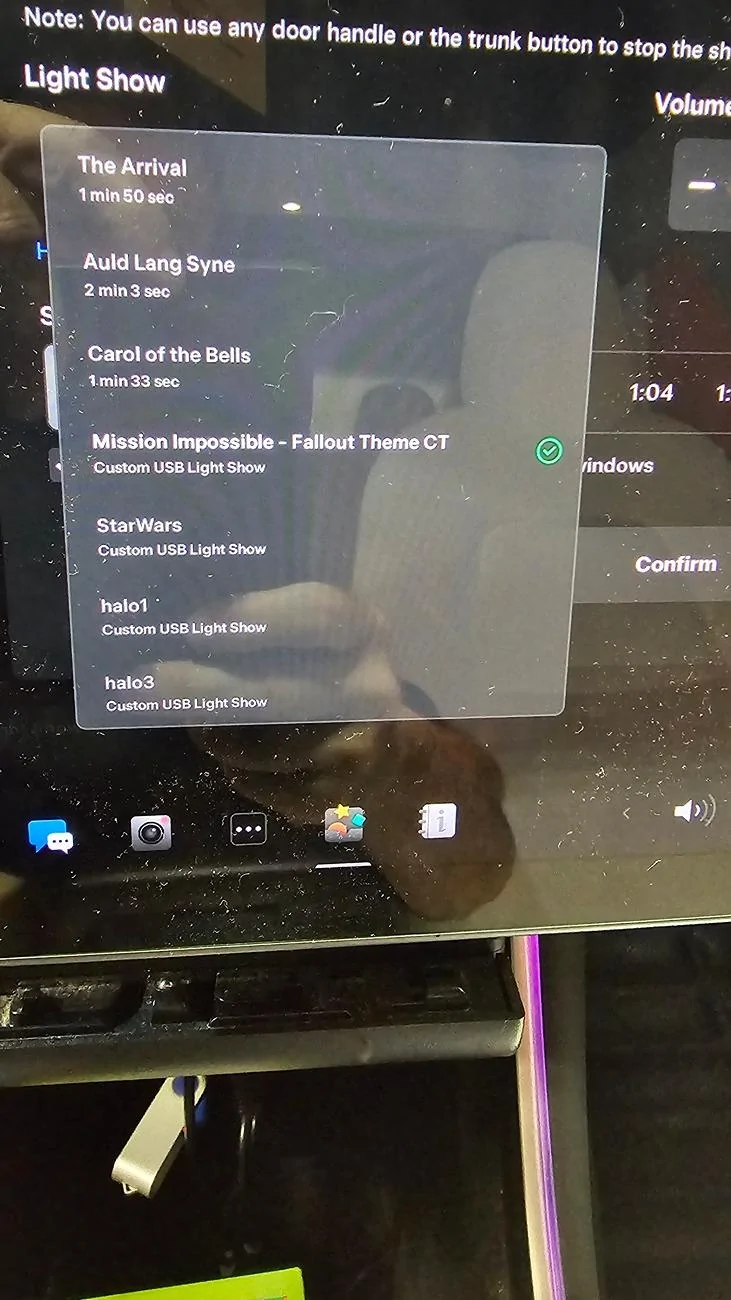
Here is the same USB drive in the Model 3:
Tesla Cybertruck Custom Lightshows no longer show up 20240718_005705


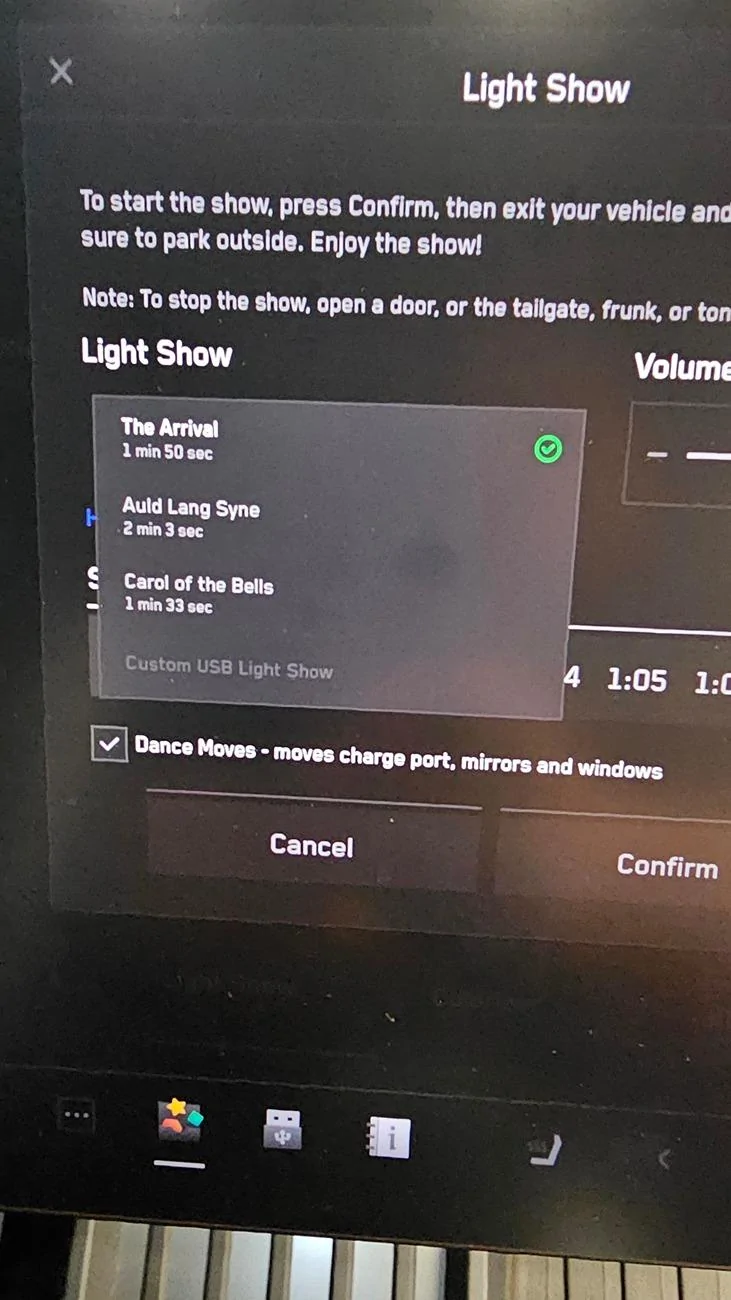
Here is the same USB drive in the Cybertruck:

Tesla Cybertruck Custom Lightshows no longer show up 20240718_005854


Exact same USB, different results. The Cybertruck has a menu option for USB music and the Model 3 seems to not have the capability as I could not find that option or icon anywhere.

Something is certainly amiss, but I don't think it is anything I can fix. I logged a call to the 1-800 support number today and of course they have a service visit scheduled for me on September 2nd. ?

BTW you can see the USB icon at the bottom of the second image.
 

rudedawg78

Well-known member
First Name
Ernie
Joined
Jun 8, 2020
Threads
46
Messages
1,814
Reaction score
3,019
Location
South Carolina
Vehicles
2024 AWD Cybertruck (Foundation Series) "Wraith"
Occupation
Retired USAF, Emergency Manager
Country flag
Here is the same USB drive in the Model 3:
20240718_005705.jpg


Here is the same USB drive in the Cybertruck:

20240718_005854.jpg


Exact same USB, different results. The Cybertruck has a menu option for USB music and the Model 3 seems to not have the capability as I could not find that option or icon anywhere.

Something is certainly amiss, but I don't think it is anything I can fix. I logged a call to the 1-800 support number today and of course they have a service visit scheduled for me on September 2nd. ?

BTW you can see the USB icon at the bottom of the second image.
Yeah, you did a very thorough job self troubleshooting your issue. I think it is time to handoff to Tesla. Sorry, bro.


OP
OP
TeslaKen

TeslaKen

Well-known member
First Name
Ken
Joined
Apr 26, 2024
Threads
108
Messages
1,242
Reaction score
1,695
Location
Overland Park
Website
www.halocybertruck.com
Vehicles
Cyberbeast, M3PD+, GT4, XK140OTS
Occupation
Currently Occupied
Country flag
Yeah, you did a very thorough job self troubleshooting your issue. I think it is time to handoff to Tesla. Sorry, bro.
Yeah I've tried to do that but it is frustrating that Teslas default answer is to schedule a service appointment. Instead in this instance it should be get me on the phone with someone who can document what I've done and get it to the dev team to review and take action on.
 

rudedawg78

Well-known member
First Name
Ernie
Joined
Jun 8, 2020
Threads
46
Messages
1,814
Reaction score
3,019
Location
South Carolina
Vehicles
2024 AWD Cybertruck (Foundation Series) "Wraith"
Occupation
Retired USAF, Emergency Manager
Country flag
Yeah I've tried to do that but it is frustrating that Teslas default answer is to schedule a service appointment. Instead in this instance it should be get me on the phone with someone who can document what I've done and get it to the dev team to review and take action on.
Yeah, that is a pain to go all the way through a service appointment with an issue that could probably be troubleshooted virtually or over the phone. My SC is 2 hours away and I would be upset at that default answer.
 

kosmo886

Well-known member
First Name
Brett
Joined
Dec 10, 2023
Threads
52
Messages
101
Reaction score
22
Location
Boston, MA
Vehicles
Model X
Country flag
Here is the same USB drive in the Model 3:
20240718_005705.jpg


Here is the same USB drive in the Cybertruck:

20240718_005854.jpg


Exact same USB, different results. The Cybertruck has a menu option for USB music and the Model 3 seems to not have the capability as I could not find that option or icon anywhere.

Something is certainly amiss, but I don't think it is anything I can fix. I logged a call to the 1-800 support number today and of course they have a service visit scheduled for me on September 2nd. ?

BTW you can see the USB icon at the bottom of the second image.
I have the same issue. My lightshows used to work then after a software update a few weeks back I can't get them to show up again.


Top