rudedawg78
Well-known member
- First Name
- Ernie
- Joined
- Jun 8, 2020
- Threads
- 46
- Messages
- 1,814
- Reaction score
- 3,019
- Location
- South Carolina
- Vehicles
- 2024 AWD Cybertruck (Foundation Series) "Wraith"
- Occupation
- Retired USAF, Emergency Manager

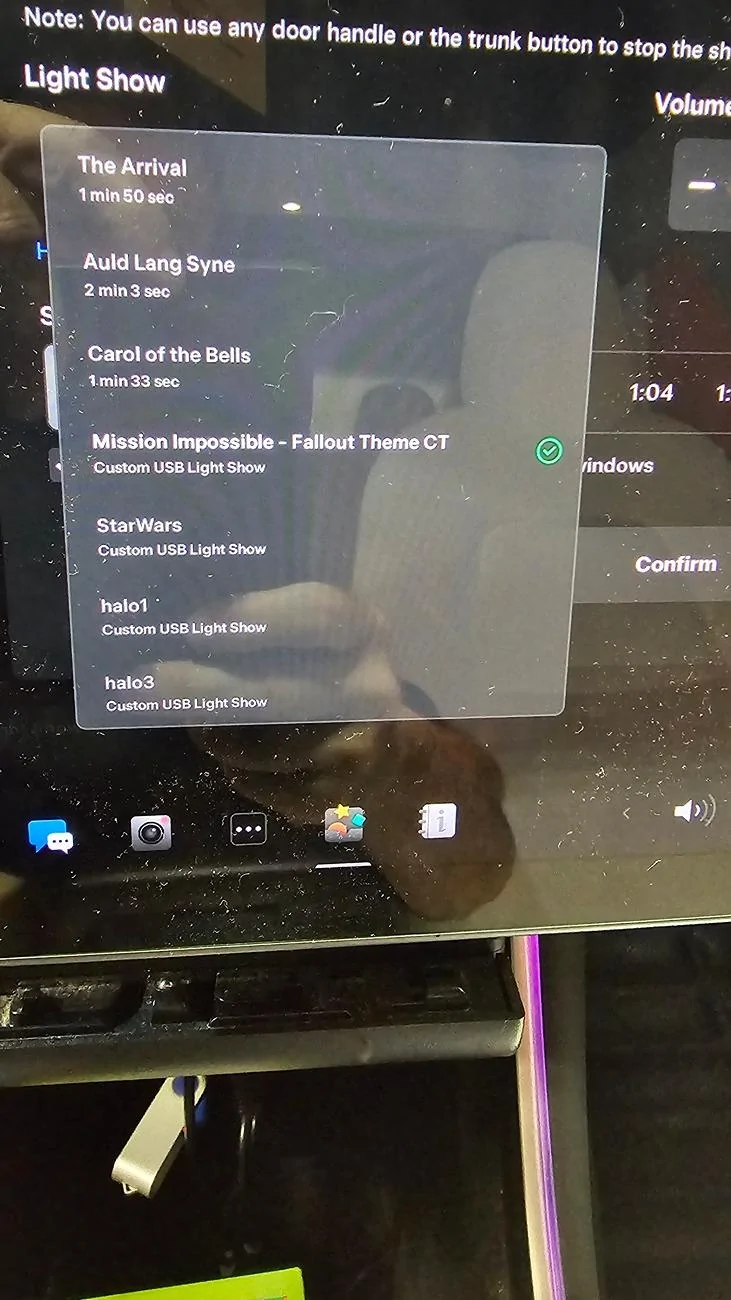
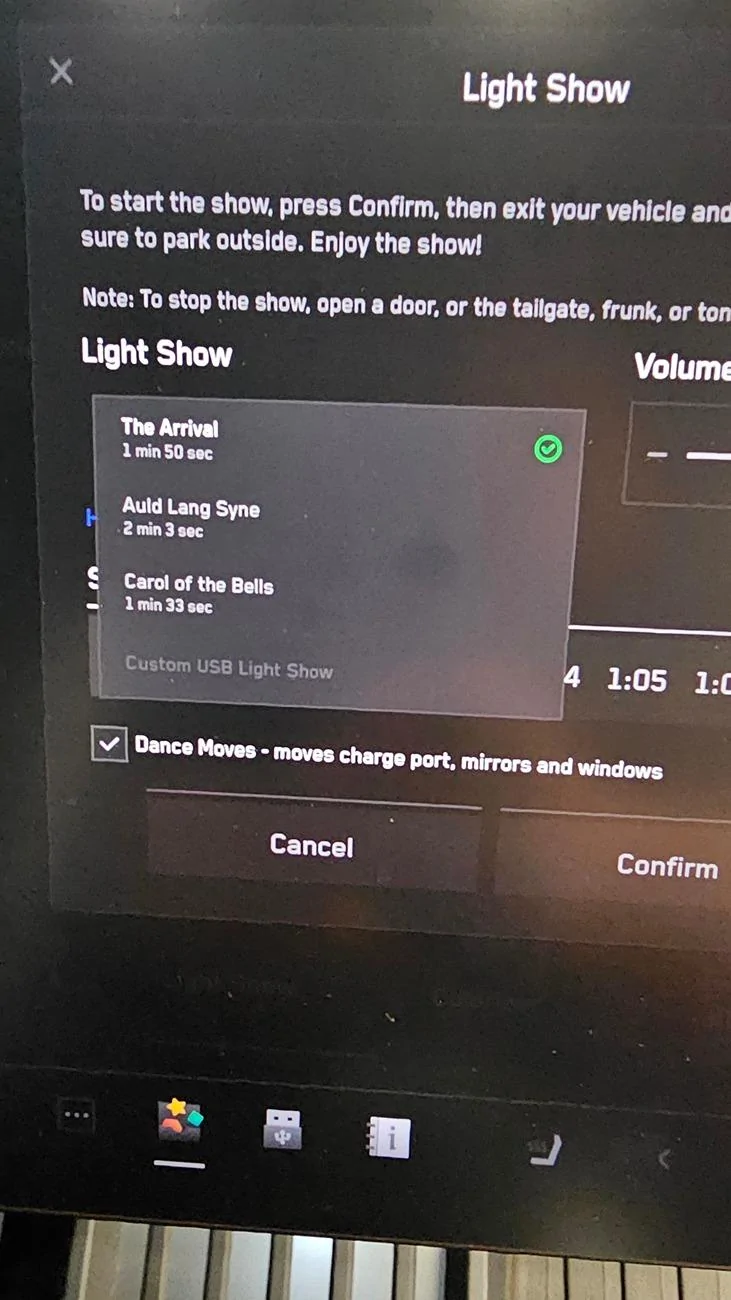
No problem. Here is what I did step-by-step:Can you please explain how you did this? I have a bunch of separate usb sticks, one for each light show. I didn’t know you could have them all show up on the drop down list. That is so much better. Also, how did you set up the partition for the sentry and dash cam? Do they each need a separate root folder? Thanks in advance
1) Purchased a portable 2TB Solid State Drive. This is the one I was recommended by another person on this forum. I also got some velcro to attach to the bottom of this drive to secure it in the glove box.
2) When I received it, I formatted the whole drive as a single exFAT partition. I used the windows disk management tool.
3) I then downloaded the free version of this partition manager software.
4) I opened up the software and clicked on the 2TB drive. Once you click it, you will see a partition option. I created 4 partions and made sure I chose "ex-FAT" for each partition. I setup each partition as follows:
- I labeled one F drive (drive letter doesn't matter), and named the partition "TeslaCam" and allocated 1.3TB to it. I also created one folder in that drive named "TeslaCam" You don't need to put anything in that folder because the DashCam and Sentry will record videos and store them in that folder.
- I labeled another partition G drive, and named the partition "Music" and allocated 500GB to it. I also created one folder in that drive named "Music". I then copied and pasted all my mp3s I have on my computer into that folder. You will then be able to access this music later.
- I labeled another partition H drive, and named the partition "LightShow" and allocated 100GB to it. I also created one folder in that drive named "LightShow". I then went online and downloaded some Tesla Light Shows. This is the primary site I used. When you download the light shows, make sure you download both the FSEQ and the MP3 file. Both files must be named the same thing, just different extensions. You then move all those lightshow files into the "LightShow" folder you created in that hard drive partition.
- I labeled my last partition I drive, and named the partition "BoomBox" and allocated 100GB to it. I also created one folder in that drive named "BoomBox". I then went online to search for Tesla Boombox files and downloaded them into the BoomBox folder. A good collection of some BoomBox files is here.
I then plugged my drive into the Cybertruck glovebox replacing the Tesla USB thumb drive and surprisingly everything worked and linked okay.
NOTE: I know there are a million ways to partition a drive and complete this process, but this is just how I did it.
I credit a lot of this to one of the forum members who posted in a different thread about how he formatted his drive. Sorry I forgot who specifically to credit.
Hope this helps out!
Sponsored