
MilliVanilli
Well-known member

TL;DR:
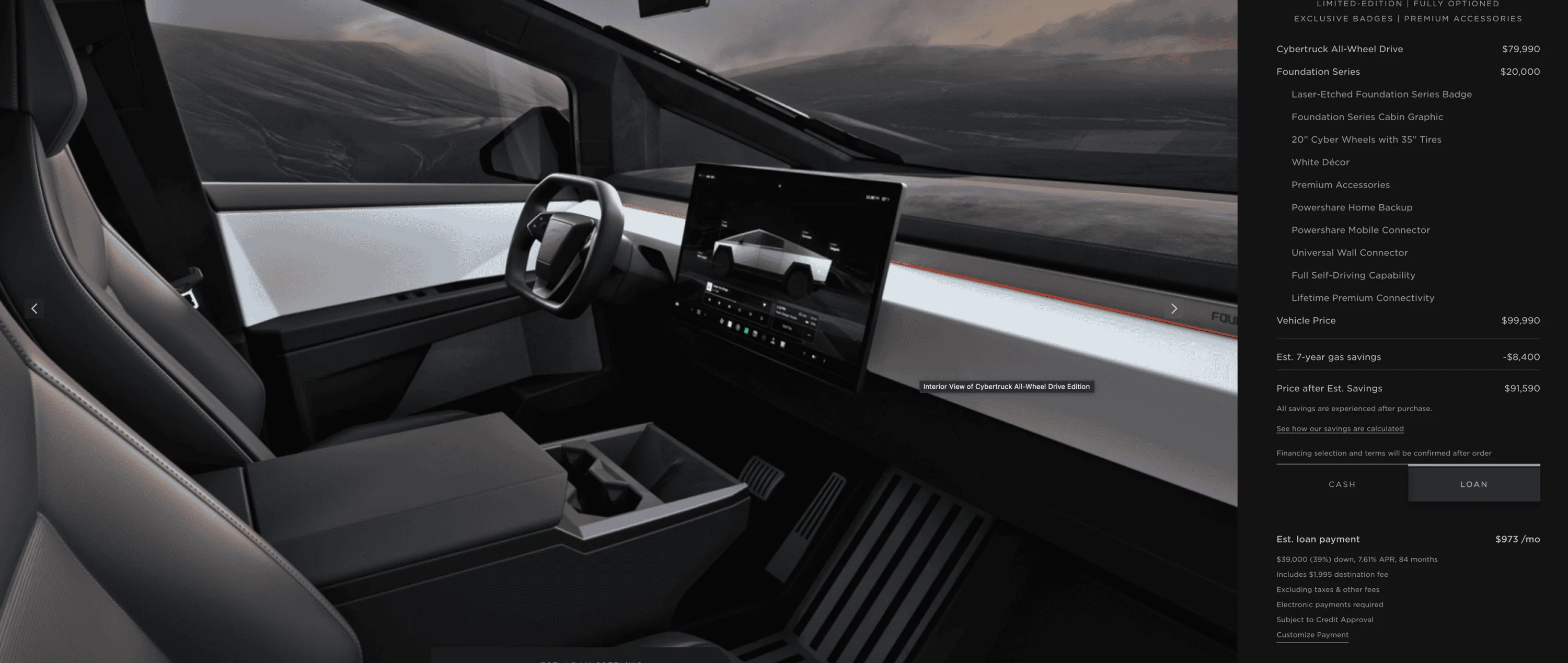
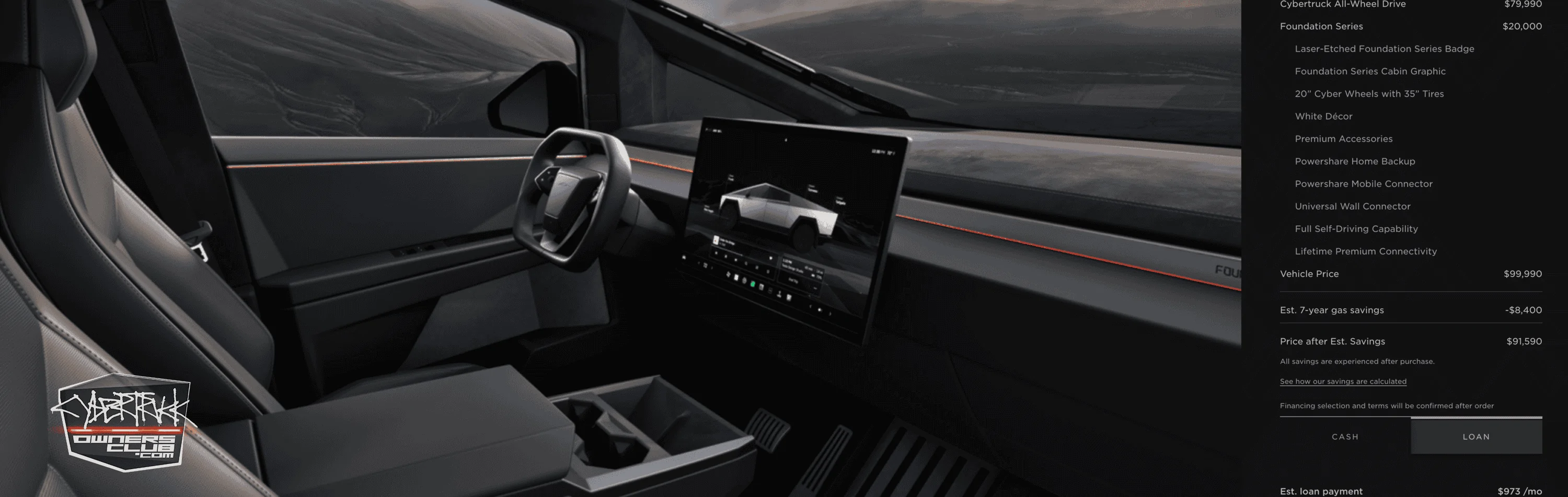
CT gray interior:
https://static-assets.tesla.com/con...R&model=ct&size=1441&bkba_opt=2&crop=0,0,0,0&
CT white interior:
https://static-assets.tesla.com/con...R&model=ct&size=1441&bkba_opt=2&crop=0,0,0,0&
(note the change IG01 for gray and IW01 for white)
Details on how to dig through Tesla's website:
Open up a configurator that is currently available (Model Y, for example). Open your browser's debugger mode (on Safari it's Option-Command-I...search to see how to open it on your browser). View the interior image and use the debugger to "target" and click on the image. From there you can find the URL for that composite image; it'll look something like this: https://static-assets.tesla.com/con...T&model=my&size=1441&bkba_opt=2&crop=0,0,0,0&
Note a bunch of things here. There's a "model" designator. And there are a bunch of option codes.
Now, go to the CT order page. They don't actually have a configurator up so it's a little trickier. We know we need to find some option codes specific to CT. Note on the Model Y URL there's a "view=STUD_SEAT" attribute. In your debugger [still on CT page], do a find for "STUD_SEAT". You'll land in the heart of the JavaScript that runs their compositor (specifically the JSON object that defines available values, etc.).
Scroll up a bit and you'll see "model": "ct". That's your model key (pretty easy to guess since Model Y's compositor is "my" and Model 3 is "m3").
You'll also see that CT's compositor has sections for "exterior" and "interior". For "interior", you'll find:
"available": ["STUD_INTERIOR", "INTERIOR_ROW1"]
So let's find "STUD_INTERIOR". Under that object, you'll see:
"relevant_groups": ["INTERIOR", "PAINT", "DRIVE", "TRIM"]
Those are the option codes we need to find. Search for:
"groups":
And you'll find a list of these objects:
"code": "MODEL",
"name": "MODEL",
"context": "default",
"groups": [],
"options": ["$CYBR"],
"required": true,
"exclusive": true,
"default_options": ["$CYBR"]
"code": "TRIM",
"name": "TRIM",
"context": "default",
"groups": [],
"options": ["$MTC03", "$MTC04", "$MTC05"],
"required": true,
"exclusive": true,
"default_options": ["$MTC03"]
"code": "INTERIOR",
"name": "Interior",
"context": "default",
"extra_copy": [],
"groups": [],
"options": ["$IG01", "$IW01", "$IG02"],
"required": true,
"exclusive": true,
"default_options": []
"code": "PAINT",
"name": "Color",
"context": "default",
"groups": [],
"options": ["$PDD"],
"required": false,
"exclusive": true,
"default_options": ["$PDD"]
Those are the option codes you can play around with to create your compositor URL. See how they apply to the final URLs:
CT gray interior:
CT white interior:
CT gray interior:
https://static-assets.tesla.com/con...R&model=ct&size=1441&bkba_opt=2&crop=0,0,0,0&
CT white interior:
https://static-assets.tesla.com/con...R&model=ct&size=1441&bkba_opt=2&crop=0,0,0,0&
(note the change IG01 for gray and IW01 for white)
Details on how to dig through Tesla's website:
Open up a configurator that is currently available (Model Y, for example). Open your browser's debugger mode (on Safari it's Option-Command-I...search to see how to open it on your browser). View the interior image and use the debugger to "target" and click on the image. From there you can find the URL for that composite image; it'll look something like this: https://static-assets.tesla.com/con...T&model=my&size=1441&bkba_opt=2&crop=0,0,0,0&
Note a bunch of things here. There's a "model" designator. And there are a bunch of option codes.
Now, go to the CT order page. They don't actually have a configurator up so it's a little trickier. We know we need to find some option codes specific to CT. Note on the Model Y URL there's a "view=STUD_SEAT" attribute. In your debugger [still on CT page], do a find for "STUD_SEAT". You'll land in the heart of the JavaScript that runs their compositor (specifically the JSON object that defines available values, etc.).
Scroll up a bit and you'll see "model": "ct". That's your model key (pretty easy to guess since Model Y's compositor is "my" and Model 3 is "m3").
You'll also see that CT's compositor has sections for "exterior" and "interior". For "interior", you'll find:
"available": ["STUD_INTERIOR", "INTERIOR_ROW1"]
So let's find "STUD_INTERIOR". Under that object, you'll see:
"relevant_groups": ["INTERIOR", "PAINT", "DRIVE", "TRIM"]
Those are the option codes we need to find. Search for:
"groups":
And you'll find a list of these objects:
"code": "MODEL",
"name": "MODEL",
"context": "default",
"groups": [],
"options": ["$CYBR"],
"required": true,
"exclusive": true,
"default_options": ["$CYBR"]
"code": "TRIM",
"name": "TRIM",
"context": "default",
"groups": [],
"options": ["$MTC03", "$MTC04", "$MTC05"],
"required": true,
"exclusive": true,
"default_options": ["$MTC03"]
"code": "INTERIOR",
"name": "Interior",
"context": "default",
"extra_copy": [],
"groups": [],
"options": ["$IG01", "$IW01", "$IG02"],
"required": true,
"exclusive": true,
"default_options": []
"code": "PAINT",
"name": "Color",
"context": "default",
"groups": [],
"options": ["$PDD"],
"required": false,
"exclusive": true,
"default_options": ["$PDD"]
Those are the option codes you can play around with to create your compositor URL. See how they apply to the final URLs:
CT gray interior:
https://static-assets.tesla.com/configurator/compositor?context=design_studio_2&options=$CYBR,$IG01,$PDD,$MTC03&view=STUD_INTERIOR&model=ct&size=1441&bkba_opt=2&crop=0,0,0,0&CT white interior:
https://static-assets.tesla.com/configurator/compositor?context=design_studio_2&options=$CYBR,$IW01,$PDD,$MTC03&view=STUD_INTERIOR&model=ct&size=1441&bkba_opt=2&crop=0,0,0,0&Sponsored
Last edited: