
Sponsored

Jhodgesatmb

Well-known member
First Name
Jack
Joined
Dec 1, 2019
Threads
89
Messages
6,488
Reaction score
9,025
Location
San Francisco Bay area
Website
www.arbor-studios.com
Vehicles
Tesla Cybertruck FS AWD, Tesla Model Y LR
Occupation
Retired AI researcher
Country flag
The USB-A in the glovebox is data. I think all the rest are just charging.
I got the app update and the Apple Watch app but nothing on the truck yet.

I cannot see the USB-A in the glovebox. I can feel the flash drive but it seemed too narrow to be USB-A.
Sponsored
 

rlhamil

Well-known member
First Name
Richard
Joined
Apr 1, 2020
Threads
6
Messages
553
Reaction score
603
Location
Glen Burnie, Maryland
Vehicles
2002 Trans Am WS6, 2018 Kia Sportage, 2024 Cyberbeast FS
Occupation
retired
Country flag
I got the app update and the Apple Watch app but nothing on the truck yet.

I cannot see the USB-A in the glovebox. I can feel the flash drive but it seemed too narrow to be USB-A.
The glovebox port is definitely USB-A, I just checked the manual. And I know that it is because the SSD (bigger than a thumb drive) I connected had both USB-C to USB-A and USB-C to USB-C cables, and I have the USB-C to USB-C cable indoors to connect to my MacBook when I want to add some more music or light shows.

It does say that although you can use a USB 3.0 drive, it needs to be USB 2.0 compatible.

The manual is ambiguous about whether the front USB-C port in the console is data or charging only. One place it seems to say it's data, elsewhere it doesn't say that. It does say the back ports are charging only, and the total across all three USB-C ports is 65W. Even if the front console USB-C can handle data, I think only the glovebox port can capture camera video. A suitably partitioned SSD or flash drive that's reasonably fast can handle camera data, light shows, music, boombox, etc all at once. On the previous update, it tended to have trouble seeing the light shows, but the latest update seems to have taken care of that.
 

TeslaKen

Well-known member
First Name
Ken
Joined
Apr 26, 2024
Threads
108
Messages
1,245
Reaction score
1,698
Location
Overland Park
Website
www.halocybertruck.com
Vehicles
Cyberbeast, M3PD+, GT4, XK140OTS
Occupation
Currently Occupied
Country flag
Just to be clear is it the entire image that needs to be a total of 1024x768? Even though I edit the separate white spaces the composite image total needs to be 1024x768 correct? Is there a preferred editing tool or will Windows Paint work just fine for this?
 

Jhodgesatmb

Well-known member
First Name
Jack
Joined
Dec 1, 2019
Threads
89
Messages
6,488
Reaction score
9,025
Location
San Francisco Bay area
Website
www.arbor-studios.com
Vehicles
Tesla Cybertruck FS AWD, Tesla Model Y LR
Occupation
Retired AI researcher
Country flag
Just to be clear is it the entire image that needs to be a total of 1024x768? Even though I edit the separate white spaces the composite image total needs to be 1024x768 correct? Is there a preferred editing tool or will Windows Paint work just fine for this?
The image they provide is 1024x768 and that is the entire are you would be adding to. Anything you add would have to be scaled to fit that size, and the overall image is limited to 1 MB.
 

TeslaKen

Well-known member
First Name
Ken
Joined
Apr 26, 2024
Threads
108
Messages
1,245
Reaction score
1,698
Location
Overland Park
Website
www.halocybertruck.com
Vehicles
Cyberbeast, M3PD+, GT4, XK140OTS
Occupation
Currently Occupied
Country flag
Source: https://github.com/teslamotors/custom-wraps


Custom Wrap Images for Tesla Cybertruck
Welcome to the Cybertruck Custom Wrap Images guide! This page will walk you through the steps to create and load custom wrap images onto your Tesla's 3D car visualization.

Getting Started
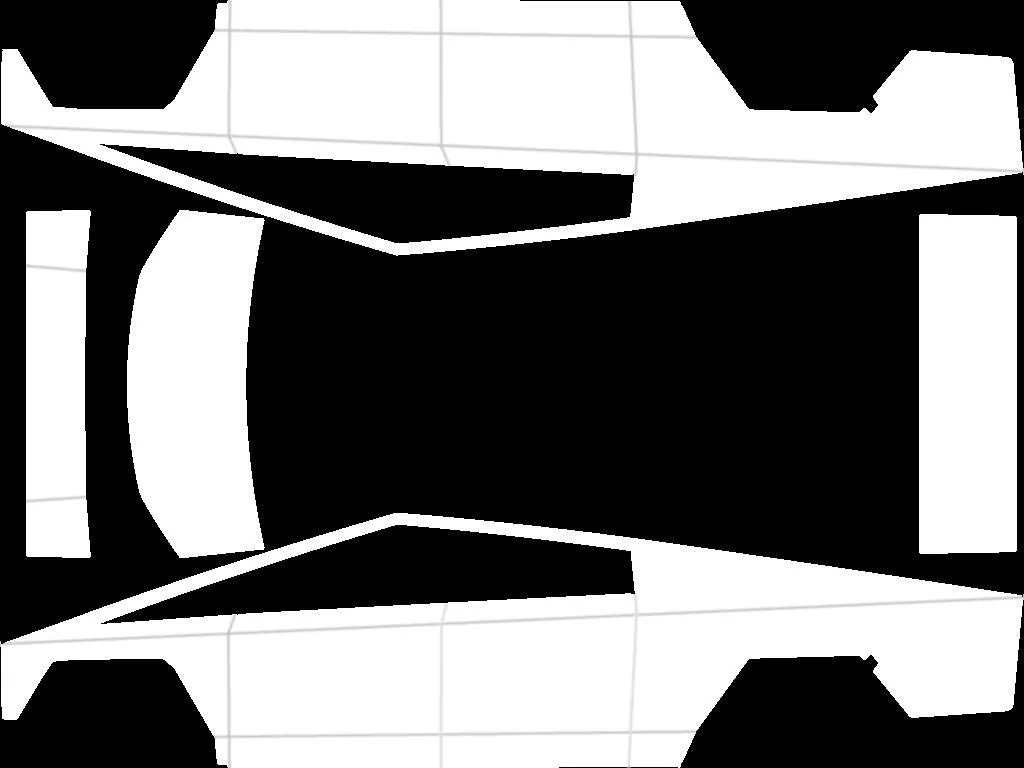
To get started, you'll need to download the template image provided below. This template will give you guidelines on how to generate new wrap images. To use it, fill in the white parts of the template with the desired content, save it into a file and follow the steps below.

template.jpg


You can find some examples under example/cybertruck.

Image Requirements
To ensure that your wrap images work correctly, please follow these guidelines:

  • Resolution: Images must be 1024x768 pixels.
  • File Size: Images must be no larger than 1 MB.
  • File Name: Image names cannot contain special symbols and should be no longer than 30 characters.
  • File Format: Images must be in PNG format.
  • File Count: Up to 10 images can be used at a time.
Loading Images onto a USB Drive
To use your wrap images you need to load them onto a USB drive:

  1. Create a folder called Wraps at the root level of the USB drive.
  2. Place your wrap images inside the Wraps folder.
  3. Ensure that the USB drive is formatted as one of the following:
    • exFAT
    • FAT 32 (for Windows)
    • MS-DOS FAT (for Mac)
    • ext3
    • ext4
    • Note: NTFS is not currently supported
  4. Make sure the USB drive does not contain any map update or firmware update files.
Applying Wrap Images to Your Cybertruck
To apply a wrap image to your Cybertruck visualization, follow these steps:

  1. Plug the USB drive into your truck's USB port.
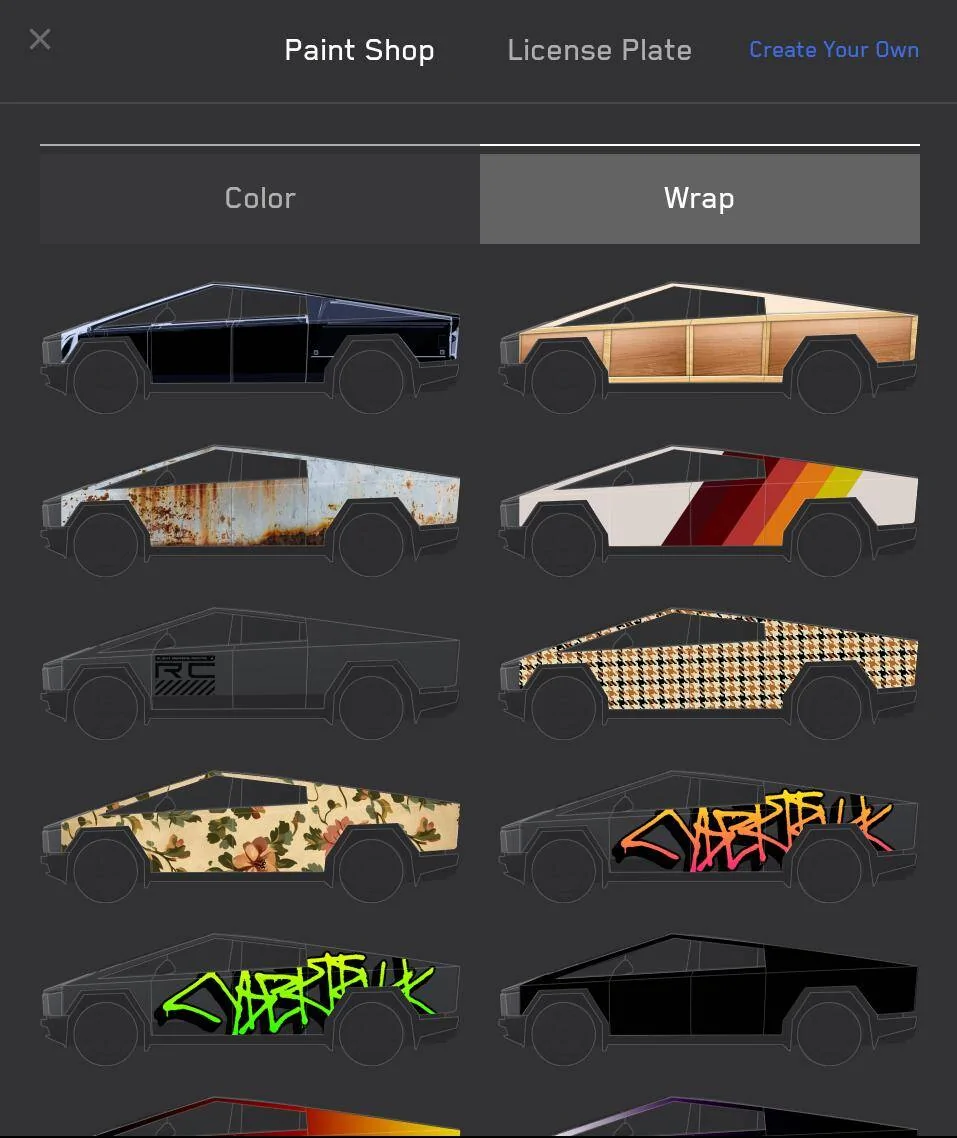
  2. Navigate to Toybox -> Paint Shop.
  3. Switch to the Wraps tab.
  4. Select a wrap image from the list.
  5. Tap on the wrap image to apply it to the car visualization.
paint-shop-wraps.jpg


Troubleshooting
If you encounter any issues with loading or applying wrap images, please check the following:

  • Ensure that the USB drive is formatted correctly and does not contain any map update or firmware update files.
  • Verify that the wrap images meet the requirements listed above.
I put up a website to start storing these and upcoming custom images at: Cybertruck Custom Wraps feel free to add any content there that you think is needed. Thx!


CyberRout66

Well-known member
Joined
Feb 21, 2024
Threads
4
Messages
72
Reaction score
120
Location
NC
Vehicles
Cybertruck, Model Y
Country flag
Has anyone created an American Flag or American-themed wrap? I am just not talented enough to do it myself.
 

Jhodgesatmb

Well-known member
First Name
Jack
Joined
Dec 1, 2019
Threads
89
Messages
6,488
Reaction score
9,025
Location
San Francisco Bay area
Website
www.arbor-studios.com
Vehicles
Tesla Cybertruck FS AWD, Tesla Model Y LR
Occupation
Retired AI researcher
Country flag
Source: https://github.com/teslamotors/custom-wraps


Custom Wrap Images for Tesla Cybertruck
Welcome to the Cybertruck Custom Wrap Images guide! This page will walk you through the steps to create and load custom wrap images onto your Tesla's 3D car visualization.

Getting Started
To get started, you'll need to download the template image provided below. This template will give you guidelines on how to generate new wrap images. To use it, fill in the white parts of the template with the desired content, save it into a file and follow the steps below.

template.webp


You can find some examples under example/cybertruck.

Image Requirements
To ensure that your wrap images work correctly, please follow these guidelines:

  • Resolution: Images must be 1024x768 pixels.
  • File Size: Images must be no larger than 1 MB.
  • File Name: Image names cannot contain special symbols and should be no longer than 30 characters.
  • File Format: Images must be in PNG format.
  • File Count: Up to 10 images can be used at a time.
Loading Images onto a USB Drive
To use your wrap images you need to load them onto a USB drive:

  1. Create a folder called Wraps at the root level of the USB drive.
  2. Place your wrap images inside the Wraps folder.
  3. Ensure that the USB drive is formatted as one of the following:
    • exFAT
    • FAT 32 (for Windows)
    • MS-DOS FAT (for Mac)
    • ext3
    • ext4
    • Note: NTFS is not currently supported
  4. Make sure the USB drive does not contain any map update or firmware update files.
Applying Wrap Images to Your Cybertruck
To apply a wrap image to your Cybertruck visualization, follow these steps:

  1. Plug the USB drive into your truck's USB port.
  2. Navigate to Toybox -> Paint Shop.
  3. Switch to the Wraps tab.
  4. Select a wrap image from the list.
  5. Tap on the wrap image to apply it to the car visualization.
paint-shop-wraps.webp


Troubleshooting
If you encounter any issues with loading or applying wrap images, please check the following:

  • Ensure that the USB drive is formatted correctly and does not contain any map update or firmware update files.
  • Verify that the wrap images meet the requirements listed above.
I got home and installed the holiday update. I now see the Paint Shop. It does not see my ‘Wraps’ folder so I added a ‘Wraps’ folder to the USB drive that has the dash cam images and it still doesn’t see my ‘Wraps’ folder items. They are in .png format and are smaller than 1024x768. Any advice? Then I found an empty/new USB drive that has an MSDOS (FAT 32) format and put the images there. Paint Shop still doesn't see the images.

Has anyone gotten this feature to work? I see the list of default/sample images in the Wraps tab of Paint Shop; just not either of my images from the USB drive.
 
Last edited:

TeslaKen

Well-known member
First Name
Ken
Joined
Apr 26, 2024
Threads
108
Messages
1,245
Reaction score
1,698
Location
Overland Park
Website
www.halocybertruck.com
Vehicles
Cyberbeast, M3PD+, GT4, XK140OTS
Occupation
Currently Occupied
Country flag
I don't think it can be on the same drive as the dashcam folder. I put a Wraps folder on the same USB drive that has custom light shows in the LightShow folder, so 2 folders in the root, Wraps and LightShows and both work fine. I did reboot with the USB plugged in for good measure. If you upload your custom file to www.cybertruckcustomwraps.com I can test it on my truck.
 

Jhodgesatmb

Well-known member
First Name
Jack
Joined
Dec 1, 2019
Threads
89
Messages
6,488
Reaction score
9,025
Location
San Francisco Bay area
Website
www.arbor-studios.com
Vehicles
Tesla Cybertruck FS AWD, Tesla Model Y LR
Occupation
Retired AI researcher
Country flag
I don't think it can be on the same drive as the dashcam folder. I put a Wraps folder on the same USB drive that has custom light shows in the LightShow folder, so 2 folders in the root, Wraps and LightShows and both work fine. I did reboot with the USB plugged in for good measure. If you upload your custom file to www.cybertruckcustomwraps.com I can test it on my truck.
I tried uploading it just now. Admittedly I did not reboot the truck after inserting the drive. I tried the Dashcam drive because I knew that it was formatted properly by Tesla. I tried 2 other drives as well. But no rebooting after inserting.

I tried again with leaving the template in the image and it worked. It turns out that the template needs to be painted inside/over, but has to be there. In fact, the template grid lines ‘must’ all be visible and every white space must be painted or will be white in the 3D visualization. It has taken me several iterations to find this out.
 
Last edited:

Cyber_Punk_SFL

Well-known member
Joined
Nov 23, 2024
Threads
8
Messages
186
Reaction score
123
Location
Florida, USA
Vehicles
2024 Tesla Cybertruck, 2024 Tesla Model 3
Country flag
The instructions fail to say what kind of USB to use. I used USB-A because that is what I have on all my flash drives, but most of the USB ports in the CT are USB-C.
Where are the USB ports in the truck? The only one I know about is the one in the glove box that the USB stick for sentry mode is plugged in to. I haven’t found any others and was wondering WTF, my other Tesla’s have had several.


Jhodgesatmb

Well-known member
First Name
Jack
Joined
Dec 1, 2019
Threads
89
Messages
6,488
Reaction score
9,025
Location
San Francisco Bay area
Website
www.arbor-studios.com
Vehicles
Tesla Cybertruck FS AWD, Tesla Model Y LR
Occupation
Retired AI researcher
Country flag
Where are the USB ports in the truck? The only one I know about is the one in the glove box that the USB stick for sentry mode is plugged in to. I haven’t found any others and was wondering WTF, my other Tesla’s have had several.
It seems like you only need to use the glove box USB port to load the images and then you can put the dash cam stick back in.

Also, it seems that you have to 'paint' within the provided template. I mistakenly assumed that you painted within the overall template size and then removed the template, and my images didn't load. They must use the template as a guide to line the image up. Although that makes complete sense, they didn't actually say so and that leads to misinterpretations such as I made.
 

Cyber_Punk_SFL

Well-known member
Joined
Nov 23, 2024
Threads
8
Messages
186
Reaction score
123
Location
Florida, USA
Vehicles
2024 Tesla Cybertruck, 2024 Tesla Model 3
Country flag
But I’m actually interested to know where are the other USB C ports in the truck? I’ve looked and could not find any. I use them for charging normally in my other Tesla’s. I just want to know am I blind or are they just hidden pretty well on the CT?
 

Jhodgesatmb

Well-known member
First Name
Jack
Joined
Dec 1, 2019
Threads
89
Messages
6,488
Reaction score
9,025
Location
San Francisco Bay area
Website
www.arbor-studios.com
Vehicles
Tesla Cybertruck FS AWD, Tesla Model Y LR
Occupation
Retired AI researcher
Country flag
But I’m actually interested to know where are the other USB C ports in the truck? I’ve looked and could not find any. I use them for charging normally in my other Tesla’s. I just want to know am I blind or are they just hidden pretty well on the CT?
Doesn’t it show on the same screen where it shows the outlets? I’d recommend the manual but they are where the outlets are I think.
 

Cyber_Punk_SFL

Well-known member
Joined
Nov 23, 2024
Threads
8
Messages
186
Reaction score
123
Location
Florida, USA
Vehicles
2024 Tesla Cybertruck, 2024 Tesla Model 3
Country flag
The outlet in the center console def does not have any USB ports there with it. I’ve checked a few times to make sure I wasn’t crazy.
 

Jhodgesatmb

Well-known member
First Name
Jack
Joined
Dec 1, 2019
Threads
89
Messages
6,488
Reaction score
9,025
Location
San Francisco Bay area
Website
www.arbor-studios.com
Vehicles
Tesla Cybertruck FS AWD, Tesla Model Y LR
Occupation
Retired AI researcher
Country flag


Top